Skip to content

Available 24/7: (852) 5537 6652

Support & Learning

DJI RC & RC 2 Controller Setup Guide: From Unboxing to First Flight

by LauThomas 29 May 2026 0 comments

Congratulations on your new DJI RC or RC 2 controller — the nerve centre of your aerial photography and videography workflow. Whether you picked up a sleek DJI Mini 4 Pro combo, a Mavic 3 series package, or a standalone RC 2 upgrade, a smooth DJI RC 2 controller setup out of the box is the single most important step before you ever lift off. A rushed or incomplete setup can lead to pairing headaches, firmware mismatches, unresponsive sticks, or worse — a frustrating first flight that sends you back to the manual. Reboot Hub technicians have configured, troubleshot, and repaired over 800 DJI RC and RC 2 controller units since 2022 — holding MOHRSS Level 3 Advanced Technician certification recognised by China's Ministry of Human Resources and Social Security — so every recommendation in this guide is backed by real workshop experience. This guide walks you through every stage: from unboxing and initial charging, through firmware updates and pairing, all the way to stick calibration, custom button mapping, and a solid pre-flight checklist. By the end, you will be confident that your DJI RC or RC 2 is dialled in, safe, and ready for the sky.

1. What Should You Check When Unboxing the DJI RC / RC 2?

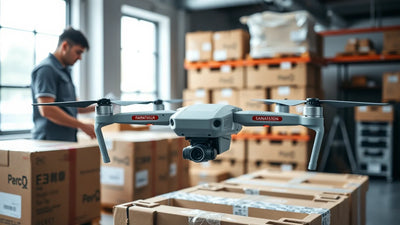
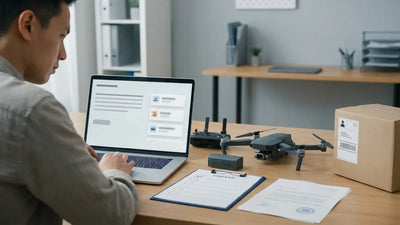
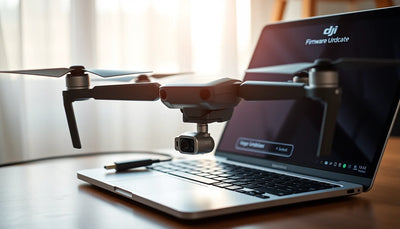
DJI RC  RC 2 Controller Setup Guide From Unboxing - professional cover image
Quick Answer: The full DJI RC / RC 2 controller setup — from unboxing to your first flight — takes approximately 30–45 minutes of active time plus 90 minutes to 2 hours for the initial charge. You will complete firmware updates, drone pairing, stick calibration, and a pre-flight checklist. If the controller fails during setup, professional diagnostics at Reboot Hub take 2–4 business days.

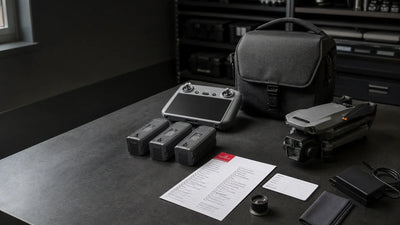
Before you plug anything in or power anything on, take a few minutes to inspect everything that came in the box. DJI includes slightly different accessories depending on whether you bought the controller as part of a combo or as a standalone purchase, so cross-reference your packing list carefully.

What's in the Box

  • DJI RC or RC 2 controller with integrated display (5.5-inch FHD on the DJI RC; 5.5-inch O4-capable FHD on the RC 2)
  • USB-C charging cable (typically USB-C to USB-C)
  • Control sticks (pre-installed on some SKUs; separate in a small bag on others)
  • Wrist strap
  • Quick-start guide and safety instructions

If your control sticks are not pre-installed, thread them into the two threaded sockets on the underside of the controller. They screw in clockwise and should feel snug — do not over-tighten. Attach the wrist strap through the lanyard hole on the bottom edge as well; it only takes a second and can save your controller from a nasty drop.

Visual Check

Inspect the screen for any scratches or dead pixels. Check the antenna bump at the top of the controller, the USB-C port, the microSD card slot (on the RC 2), the five-way scroll wheel on the right side, and the rear Fn and C1/C2 buttons. Make sure the gimbal dial on the top left and the mode switch on the top right both move freely without grinding or sticking. If anything looks off, contact our support team before proceeding — it is always easier to swap a unit when it is still brand new and untouched.

2. How Long Does the DJI RC / RC 2 Take to Charge?

DJI ships controllers with a partial charge, but you should always top them up to 100 % before your first full setup session. A stable power source prevents mid-update battery drops — the last thing you want during a firmware flash.

  1. Connect the included USB-C cable to the port on the bottom of the controller.
  2. Plug the other end into a USB-C wall charger rated at 5 V / 2 A or higher. A laptop USB-C port works in a pinch, but a wall adapter is faster and more reliable.
  3. Press the power button once, then press and hold it for two seconds. The battery indicator LEDs on the front will cycle to show charging status.
  4. Wait until all four LEDs are solid — this signals a full charge, which typically takes about 90 minutes for the DJI RC and approximately two hours for the RC 2.

Tip: While the controller is charging, open the packaging for your drone and begin charging the aircraft battery as well. Getting both to 100 % in parallel saves you time later.

3. How Do You Pair the DJI RC or RC 2 with Your Drone?

Pairing binds your controller to a specific aircraft. DJI pre-pairs combo packages at the factory, but if you bought the controller separately or if you are switching to a different drone, you will need to manually pair. The process differs slightly between the two controller generations.

Pairing the DJI RC

  1. Power on the drone first, then power on the controller.
  2. On the controller's touchscreen, navigate to Settings → Remote Controller → Pairing.
  3. Tap Start Pairing. The controller will emit a rapid beeping sound.
  4. On the drone, locate the link button (position varies by model — check the quick-start guide for your specific aircraft).
  5. Press and hold the drone's link button for about three seconds until the drone's status LEDs begin flashing rapidly.
  6. Wait approximately 5–10 seconds. The controller screen will confirm "Pairing Successful" and the drone's LEDs will turn solid.

Pairing the DJI RC 2

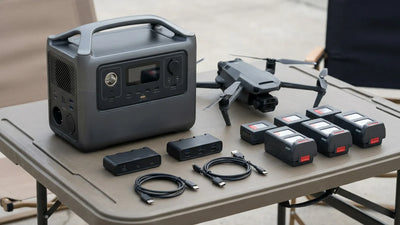
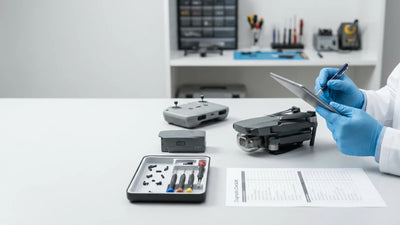
DJI RC  RC 2 Controller Setup Guide From Unboxing - technical diagnostic close-up
  1. Power on the drone and the RC 2 controller.
  2. Swipe down from the top of the RC 2 screen to open the Control Centre, then tap the gear icon to enter Settings.
  3. Go to Remote Controller → Link and tap Start Linking.
  4. Press and hold the drone's pairing button until the indicator LEDs begin flashing.
  5. The RC 2 will display a confirmation message once the connection is established.
Feature DJI RC DJI RC 2
Video Transmission O3+ O4
Max Transmission Distance 15 km (FCC) 20 km (FCC)
Display 5.5" FHD 5.5" FHD
Battery Life (approx.) 4 hours 3.5 hours
MicroSD Slot No Yes
Storage 8 GB internal 32 GB internal + microSD
Weight 390 g 420 g

If pairing fails, make sure both devices are running the same major firmware version, that the drone is within two metres of the controller, and that no other DJI controllers nearby are in pairing mode. You can find additional troubleshooting steps in our connection troubleshooting guide.

4. How Do You Update Firmware and Configure Essential DJI RC / RC 2 Settings?

Firmware is the invisible backbone of your flight experience. DJI pushes updates to improve transmission stability, add features, patch bugs, and comply with new regulatory requirements. Always update before your first real flight.

Updating Firmware

  1. Connect your RC / RC 2 to a Wi-Fi network (Settings → Wi-Fi) or insert a SIM card with data (RC 2 only).
  2. When a new firmware is available, a pop-up notification will appear on the controller's home screen. You can also check manually under Settings → Firmware Update.
  3. Tap Download & Install. The controller will download the package, verify it, and begin the installation.
  4. Do not power off the controller during the update. The screen may go dark for up to three minutes — this is normal.
  5. Once complete, the controller will reboot automatically. Confirm the new version number matches DJI's release notes on the Reboot Hub Support & Learning page.

Important: The drone's firmware and the controller's firmware must be compatible. If the drone prompts an update after you update the controller, follow the on-screen instructions to bring the aircraft firmware up to date as well. Mismatched firmware versions are the number-one cause of mysterious disconnection warnings.

Configuring Your Region & Regulatory Settings

During the initial setup wizard, you will be asked to select your country or region. This setting determines which transmission power levels and frequencies are enabled. In China, the controller will default to the appropriate SRRC-compliant configuration. If you travel internationally, the DJI Fly app may prompt you to re-select your region — always choose truthfully, as using the wrong region can result in illegal transmission levels and potential fines.

Linking Your DJI Account

Sign in with your DJI account on the RC / RC 2 to activate the device, unlock geofencing databases, enable FlySafe updates, and sync your flight logs. If you do not have a DJI account, you can create one directly on the controller during setup.

5. How Do You Calibrate Sticks and Customise Buttons on the DJI RC / RC 2?

Out of the box, your control sticks should be accurately centred and responsive. However, temperature extremes during shipping, manufacturing tolerances, or simply personal preference may make recalibration worthwhile. DJI also gives you powerful customisation options for the physical buttons, allowing you to tailor the controller to your flying style.

Stick Calibration

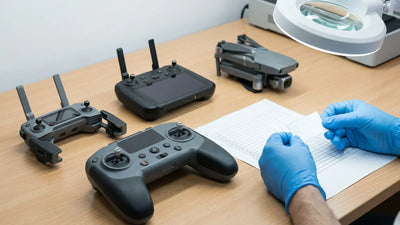
DJI RC  RC 2 Controller Setup Guide From Unboxing - tools and equipment workspace
  1. On the controller, go to Settings → Remote Controller → Stick Calibration.
  2. The screen will display a visualisation of both stick axes (left and right sticks, each with X and Y channels).
  3. First, release both sticks so they sit in their natural centre position. Tap "Start". The controller reads the resting position and marks it as zero.
  4. Next, you will be prompted to rotate each stick through its full range of motion. Slowly push each stick to every extreme — full up, full down, full left, full right — and trace the outer boundary smoothly.
  5. Release the sticks back to centre and tap "Confirm".
  6. Test by observing the on-screen indicators. With both sticks centred, the indicators should sit precisely in the middle of each axis. If there is any drift, repeat the calibration.

Pro tip: Perform stick calibration at room temperature. Extreme cold can cause gimbal potentiometer drift that is impossible to fully compensate for electronically.

Customising Buttons

Both the DJI RC and RC 2 feature several programmable controls:

  • C1 button (rear left) — defaults to toggling between Normal and Sport flight modes on some drones, or camera view switching on others.
  • C2 button (rear right) — often defaults to returning the camera to the forward-facing view or activating a quick function.
  • Five-way scroll wheel (right side) — used for gimbal tilt by default.
  • Fn button (rear centre, RC 2 only) — a dedicated function button that can be assigned to quick-access actions.

To remap:

  1. Go to Settings → Remote Controller → Customize Buttons.
  2. Select the button you want to reassign.
  3. Choose from the available actions list, which may include:
    • Gimbal centre / re-centre
    • Camera settings shortcut
    • Toggle obstacle avoidance
    • Start/stop recording
    • Switch between photo and video mode
    • QuickShot activation
    • Map view toggle
    • EV (exposure value) lock
  4. Confirm your selection and test the button immediately to make sure it feels intuitive.

Adjusting Stick Sensitivity & Expo Curves

For pilots who want finer control, DJI allows you to adjust stick sensitivity and expo (exponential) curves in the DJI Fly app settings. A higher expo value means the stick will be less sensitive near centre, giving you smoother cinematic control — ideal for slow pans and gradual altitude changes. Lower expo values keep the response linear and aggressive, which is better suited for freestyle or sport flying. Spend a few flights experimenting with these curves to find what feels right for your hands.

6. What Should You Check Before Your First Flight with the DJI RC / RC 2?

Before every flight, run through this checklist to ensure everything is in order. Building this habit from day one will save you from avoidable incidents down the line.

  • Battery levels: Confirm both the controller and drone batteries are above 50 %. Ideally, start fully charged.
  • Firmware: Check that no update prompts are pending.
  • Propellers: Inspect all propellers for cracks, chips, or warping. Replace any damaged props before takeoff.
  • Gimbal cover: Remove the gimbal cover and ensure the gimbal moves freely when you power on the drone.
  • SD card: Insert a formatted microSD card into the drone (and into the RC 2 if you want to record the live view).
  • GPS lock: Wait for the controller to confirm a strong GPS signal (typically 10+ satellites) before taking off. The home point will be recorded automatically.
  • Home point & RTH altitude: Verify that the Return-to-Home altitude is set higher than the tallest nearby obstacle — buildings, trees, or power lines.
  • Obstacle avoidance: Confirm sensors are enabled, especially if you are flying in a new environment.
  • Flight restrictions: Check the FlySafe map on the DJI Fly app for any geofenced zones, NFZs (No-Fly Zones), or altitude restrictions in your area.
  • Weather: Avoid flying in rain, high winds (above 10 m/s for most consumer drones), or extreme temperatures below -10 °C or above 40 °C.

On your very first flight, take off in an open field away from people, buildings, and electromagnetic interference sources like cell towers. Hover at eye level for 30 seconds and observe the drone's stability. Test each stick input gently — yaw left, yaw right, ascend, descend, then forward, backward, left, and right. Get a feel for the braking distance and response time before attempting any advanced manoeuvres.

If you experience any unexpected behaviour — drifting, delayed inputs, or error messages — land immediately and consult our common DJI error codes guide to diagnose the issue. If troubleshooting does not resolve the problem, Reboot Hub's professional DJI repair service can perform chip-level diagnostics on your controller. It is always better to troubleshoot on the ground than in the air.

Frequently Asked Questions

1. Can I use the DJI RC 2 with older drones like the Mavic 3?

No. The DJI RC 2 uses DJI's O4 transmission system and is only compatible with drones designed for that protocol, such as the DJI Air 3 and Mini 4 Pro. The original DJI RC (O3+) works with the Mavic 3 series, Mini 3 Pro, and other O3/O3+ drones. Always check DJI's official compatibility chart before purchasing a standalone controller.

2. My controller won't pair with the drone. What should I do?

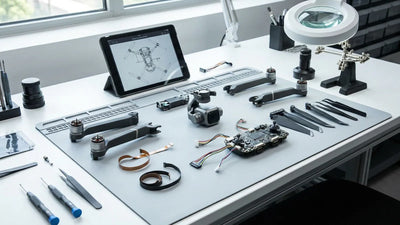
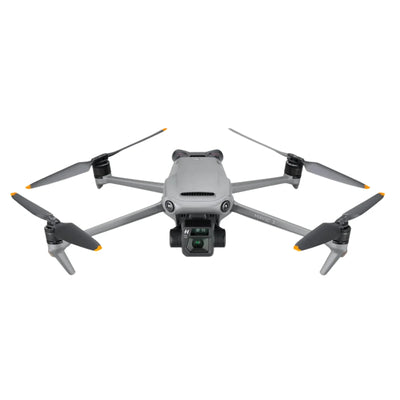
DJI RC  RC 2 Controller Setup Guide From Unboxing - professional repair process

First, ensure both devices are powered on and within two metres of each other. Confirm that both are running compatible firmware versions — a major mismatch is the most common pairing blocker. If the issue persists, try restarting both devices, forgetting the link on the controller, and initiating pairing from scratch. You can also try resetting the controller to factory defaults via Settings → About → Factory Reset and re-attempting. For step-by-step help, visit our support centre.

3. How do I know if my sticks need recalibration?

If your drone drifts in hover without any wind, if the gimbal tilts slightly when you move the yaw stick, or if you notice a "dead zone" where inputs are not registered, calibration is likely needed. You can also check the stick visualisation screen — if the indicators do not sit precisely at zero when the sticks are released, recalibrate.

4. Can I charge the DJI RC / RC 2 while flying?

DJI does not officially support charging while flying, and the USB-C port is located on the bottom of the controller, which would make a connected cable awkward and potentially dangerous during a flight session. Always charge before and after flights. If you find yourself running low on battery, land, power off, and charge for at least 15 minutes to get enough juice for a safe landing retrieval.

5. Where can I get my DJI controller repaired if something goes wrong?

If your controller suffers physical damage, screen failure, or internal component issues, bring it to a certified repair centre. At Reboot Hub, based in Shenzhen, China, we specialise in DJI drone and controller repairs with genuine parts and fast turnaround times. Visit our DJI repair services page to book a diagnostic appointment or get a quote. We also stock a range of pre-owned DJI drones and accessories that have been professionally inspected and certified.

6. How much does it cost to repair a DJI RC or RC 2 controller?

Controller repairs at Reboot Hub start at $50 for minor component fixes such as ribbon or flex cable replacement. Chip-level main board repairs range from $150–180, and a full board replacement costs around $300. Most DJI RC / RC 2 repairs are completed in 2–4 business days. For an exact quote based on your specific fault, check our Reboot Hub DJI Repair Cost Database 2026 or contact our support team with photos of the damage.

7. Is chip-level repair available for the DJI RC and RC 2, or does the whole board need replacing?

At Reboot Hub, we perform chip-level repairs on DJI RC and RC 2 controllers — surgically replacing individual failed components such as power management ICs, display ribbon connectors, or USB-C port controllers rather than swapping the entire main board. Chip-level repair typically costs $150–180, compared to $300 for a full board replacement, saving you up to 50 %. We hold MOHRSS Level 3 Advanced Technician certification, and most chip-level repairs are completed in 2–4 business days. Request a diagnostic assessment at Reboot Hub's professional DJI repair service to determine which approach is right for your controller.

Reboot Hub · Support

Need Professional Help?

If your drone needs repair after troubleshooting, Reboot Hub offers certified chip-level repair in Shenzhen, China — genuine OEM parts, 90-day warranty.

Prev post
Next post

Leave a comment

Please note, comments need to be approved before they are published.

Thanks for subscribing!

This email has been registered!

Shop the look

Choose options

Edit option
Back In Stock Notification
this is just a warning
Login
Shopping cart
0 items
0%