Support & Learning / Module 7 branch
Pre-flight, Condition and Care
Before this lesson: DJI Drone Pre-Flight Checklist: Go/No-Go Checks
What you will understand
- Build a repeatable readiness and condition process.
- Separate observable evidence from assumptions before choosing an action.
- Continue through the main lesson path or enter a focused topic branch when needed.
Module 4 branch / Firmware and software state
A reliable DJI firmware guide should help a customer update the exact aircraft system without turning a software prompt into a guessing exercise. The aircraft, controller, batteries, accessories and app can all participate in the supported state. Reboot Hub therefore starts with identity and evidence, follows only the route DJI currently supports for that model, and makes the stop or service decision clear before the aircraft returns to flight.
Quick answer
Identify the whole system, preserve its current state, then follow the supported prompt
Record the exact aircraft and controller models, the current versions shown by the supported DJI interface, every connected accessory, the warning text and the planned operating date. Use DJI Fly, DJI Pilot 2 or the exact DJI Assistant 2 edition listed for that product; do not substitute a package, tool or sequence from another model. Let the process finish and restart as directed. If the update repeatedly fails, a device is not recognized or the aircraft behaves abnormally afterward, preserve the evidence and stop rather than forcing another software action.
What should be visible before the customer acts?
What does DJI drone firmware actually control?
Firmware is the embedded software state used by the aircraft and related hardware. Depending on the product, an update can coordinate the flight controller, camera or gimbal behavior, sensing functions, transmission system, remote controller, intelligent battery modules and supported accessories. The mobile or controller app is the visible interface, but it is not the only component involved. That is why a prompt can appear again after a different battery, controller or accessory is connected. Treat the update as a complete-system change rather than a file placed on one device.
Firmware is not a sales version, and it is not the same thing as DJI GEO. A Global or domestic sales-version question concerns the represented product and supported market context. DJI GEO concerns location-based flight information or restrictions, while local airspace law and operating permission come from the relevant authority. Updating supported software does not change the customer's responsibility to follow local airspace requirements, and a firmware article must never imply that a different version grants permission inside a restricted area.
What should be recorded before any update begins?
Write down the exact aircraft, controller and accessory names as shown on the equipment or supported interface. Save the current aircraft and controller versions, the DJI app name and version, the account state needed for normal use, any battery or accessory prompt, and the complete warning text. Photograph the equipment arrangement and capture screenshots that do not expose private account details. If the aircraft is already showing an unrelated sensor, power, impact or moisture concern, do not let a firmware update erase the chronology or become a substitute for diagnosis.
Record the operating reason as well. A recreational owner may be responding to an ordinary app prompt; a production team may need a controlled maintenance window; an enterprise fleet may need matched configurations and a change record. Avoid beginning immediately before a paid assignment or travel day. Preserve important settings and mission information through supported export or documentation where available, because an update can change defaults or require the operator to confirm settings again even when media files remain untouched.

Which DJI update route should be used?
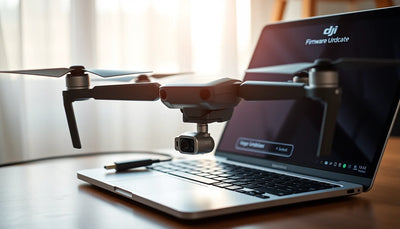
Start with the current DJI application specified for the exact model. Many recent consumer aircraft use DJI Fly, while enterprise systems can use DJI Pilot 2 and a different support route. If DJI makes an update available, the supported app presents a prompt and guides the connected components through the process. Keep the controller or mobile device connected to the internet when the product guidance requires it, provide the power level stated for that model and do not move to another app simply because its name looks familiar.
DJI Assistant 2 is a family of desktop applications, not one universal tool. Choose only the edition that DJI lists for the exact product on the current download or support page. When supported, the desktop route can show the connected device and available firmware from DJI's service. It should not be used to load an unknown file or imitate steps for a different aircraft. If the exact model is absent from the supported-products list, stop and use the model support route rather than experimenting.
How should the supported update be carried out?
Place the powered-off or powered-on equipment only as the on-screen sequence directs, in a stable ventilated area where aircraft, controller and cable cannot be disturbed. Use a reliable network for the download and a known-good data cable for a supported desktop connection. Connect the same controller and accessories that belong to the operating configuration. Begin only after the required devices have adequate power, then follow the displayed sequence without closing the application, disconnecting the cable or powering off a component unless the current official instructions tell you to do so.
The aircraft or controller may restart during a normal process. Observe the supported interface rather than interpreting beeps or lights through a generic article. When the interface reports completion, allow the directed restart to finish and reconnect the complete system. If another intelligent battery or supported component triggers its own prompt, treat that as a separate displayed action and follow the exact product guidance. Do not assume that every battery family, accessory or controller receives firmware in the same order.
What should you do when the update fails?
Preserve the exact failure screen, the component being updated and the point at which the process stopped. Check the causes DJI identifies for the exact product, such as insufficient aircraft or controller power, a device being powered off, a network interruption or the mobile application leaving the update task. Restart the affected product and compatible mobile device only through normal supported controls, then retry the official route. If an app attempt fails several times and DJI lists the aircraft as compatible, the correct DJI Assistant 2 edition can provide the alternate supported route.
Do not translate an unfamiliar numeric code into a guessed component failure, and do not repeat the process indefinitely. If the device remains unrecognized, cannot complete a normal restart, reports a persistent mismatch, shows a new physical or sensor warning, or behaves abnormally, stop. Keep the screenshot and exact configuration for DJI support or a qualified diagnostic intake. A failed update can expose an existing cable, power, storage or hardware issue; the article cannot determine which one without evidence from the unit.

Should you install an older release or reset everything?
Do not treat an older release as a general troubleshooting technique. If DJI displays an exact supported option for the connected product and instructs the owner to use it, follow that interface and preserve the before-and-after versions. If no option is presented, do not obtain packages from forums, change hidden settings or use third-party tools. Those actions can create a different problem, obscure the original evidence and conflict with the supported service path. Reboot Hub will not provide instructions for circumventing product or airspace controls.
A settings reset is also not a universal cure. Account binding, sales-version context, DJI GEO information, local airspace rules, hardware condition and accessory compatibility remain separate questions. Before resetting supported settings, understand what will be removed and what must be configured again. If the actual concern is ownership transfer, controller compatibility, a region misunderstanding or a physical fault, use that dedicated path instead of clearing settings and hoping the distinction disappears.
How should the drone be accepted after an update?
First verify the aircraft, controller, battery and relevant accessory versions shown by the supported interface. Confirm that the expected controller link returns, no new warning remains, the camera view and gimbal startup look normal, and safety-related settings have not silently changed. Review return-to-home behavior, altitude and distance settings, control mode, obstacle-sensing choices, camera settings and any mission-specific configuration. Record the new state so a later issue can be compared with a known change date.
Installation success is not immediate mission approval. Complete the normal pre-flight checklist and choose a suitable low-risk environment for a controlled function check permitted by local rules. Expand exposure gradually and stop on any unexpected warning, link behavior, sensor state or power concern. A professional team should keep the change record with the asset. The acceptance result applies to that exact configuration and observation; it does not guarantee every payload, site, temperature or mission.
How does Reboot Hub support a firmware or software-state concern?
Reboot Hub begins from the customer's concern: what changed, which exact unit and accessories are involved, what the supported interface reported, and what must be true before the equipment can be trusted again. We separate a supported software action from account, compatibility, physical-condition, sales-version, GEO and local-rule questions. Known evidence and remaining unknowns are stated plainly, so a beginner is not pushed into a risky shortcut and a professional operator can preserve a useful asset record.
Use the Drone Wiki for exact-model context, the controller lesson for command and compatibility, the DJI Assistant 2 branch for supported desktop software, the error-code reference for preserving an exact warning, and the pre-flight lesson for return-to-service acceptance. If supported checks do not resolve the concern, the professional repair path moves from evidence to diagnosis, written scope and approval. The Reboot Hub Standard explains how that transparency removes reasonable customer worries before a purchase or service decision.
Keep exploring
Further reading
From The Reboot Hub Chronicle







From Drone Guides