Support & Learning / Module 7 branch
Pre-flight, Condition and Care
Before this lesson: DJI Drone Pre-Flight Checklist: Go/No-Go Checks
What you will understand
- Build a repeatable readiness and condition process.
- Separate observable evidence from assumptions before choosing an action.
- Continue through the main lesson path or enter a focused topic branch when needed.
Module 4 model branch / DJI Mini 4 Pro
Mini 4 Pro owners often need a simple answer, but the safe answer still depends on the exact aircraft, controller, DJI Fly state, batteries and optional compatible devices. This guide replaces fabricated error-code tables and unsupported older-release instructions with the current DJI support path, a clear evidence record and a practical post-update gate. The goal is confidence in the customer's real kit, not confidence created by a long list of precise-looking claims.
Quick answer
Use the DJI Fly prompt, keep the connected system powered and verify every relevant component
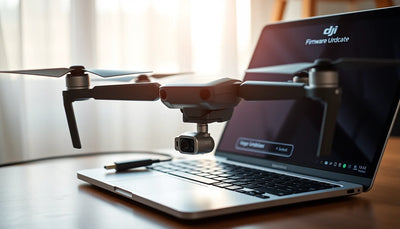
DJI states that Mini 4 Pro firmware updates are presented in DJI Fly after the aircraft and controller are connected. The controller or mobile device must remain connected to the internet. DJI also identifies aircraft or controller power below 20 percent, power-off during update, network interruption and switching the mobile interface away during download as failure factors. Record versions and warnings, follow the current prompt, and stop after repeated failure or abnormal behavior instead of attempting unsupported recovery.
What should be visible before the customer acts?
What can a Mini 4 Pro firmware update affect?
The Mini 4 Pro operates as a coordinated set of aircraft, remote controller, DJI Fly software, intelligent batteries and optional supported devices. Firmware can change how those components communicate or expose supported functions, but the exact effect belongs in DJI's current release notes rather than an invented online history. Record what the current interface shows and read the release information offered for the update. Do not assume a feature, error or compatibility change from a different Mini model also applies here.
Firmware is not a sales version, and it is not the same thing as DJI GEO. Product representation, account or activation state, DJI GEO information and local airspace permission remain separate. An update cannot be presented as a way to change a market version or avoid a location-based or legal restriction. Mini 4 Pro may be light, but the pilot must still check the rules that apply to the aircraft configuration, battery, operation and destination.
What should be documented before updating Mini 4 Pro?
Identify whether the kit uses DJI RC 2 or RC-N2 with a mobile device, then record the aircraft, controller and DJI Fly versions shown by the supported interface. Note each battery and any goggles or motion-control accessory intended for the configuration. Preserve current warnings, account or binding questions, camera and safety settings, and screenshots without private data. If the unit was bought pre-owned, keep ownership and supplied-item evidence separate from the firmware task; an update does not prove clean history or complete transfer.
Choose a quiet maintenance period and back up important footage. DJI's Mini 4 Pro support guidance requires the DJI RC 2 or mobile device to be connected to the internet during the firmware update. DJI also names aircraft or controller power below 20 percent as a failure factor. Use the current exact-product guidance for preparation, keep the equipment stable and avoid beginning immediately before travel, a paid shoot or another event that leaves no time for verification.

How should DJI Fly update the Mini 4 Pro?
Connect the aircraft and represented controller, open the current supported DJI Fly environment and wait for the update prompt. Read the displayed release information and follow the on-screen instructions. Keep the controller or mobile device connected to the internet, maintain sufficient aircraft and controller power and keep the application on the update task during download. Do not power off the aircraft or controller while the process is running. DJI states that the aircraft can restart multiple times and automatically power off after the update completes.
After the normal sequence finishes, restart and reconnect the kit as directed. Verify the aircraft and controller information shown by DJI Fly. Connect the batteries and supported accessories that belong to the intended configuration and respond only to prompts the supported interface actually presents. Do not rely on a fixed sequence from an older app screen or assume that every optional device receives firmware through the same route. The live interface and exact-product support page take priority over a static article.
Can DJI Assistant 2 support a Mini 4 Pro update?
DJI currently lists Mini 4 Pro among the supported products for DJI Assistant 2 Consumer Drones Series. If the normal DJI Fly route fails repeatedly, download that exact edition from DJI's current support page, use a known-good data cable and let the desktop application identify the powered aircraft. Choose only the firmware DJI displays for that connected product. The desktop route is a supported alternative, not a reason to download a package from a forum or use a tool made for another product line.
If the aircraft is not recognized, check the cable, port, application edition, normal power state and computer permissions described by current DJI support. Change one factor at a time and preserve the screen. If recognition or installation still fails, stop and contact DJI or a qualified diagnostic service. Do not assume that a USB problem proves damaged flash storage or that opening the aircraft will improve a software connection.
What should be done after a Mini 4 Pro update failure?
Start with the factors DJI names: aircraft or controller power below the required level, a product being powered off, a network interruption, or the mobile interface leaving the firmware download. Preserve the exact warning and progress state, restore the supported conditions and restart the products normally before one controlled retry. If DJI Fly fails several times, use the supported Assistant edition when the aircraft is normally recognized. Keep the customer-facing record factual rather than assigning a cause from an unverified numeric code.
Stop when the update repeatedly fails, the aircraft cannot be recognized, the normal restart does not complete, or a new camera, gimbal, sensor, power or link concern appears. Do not install unknown files, use hidden commands, open the aircraft or repeat power cycles indefinitely. If there is impact, moisture, swelling, heat, odor or another physical concern, firmware recovery is no longer the only question. Isolate the relevant safety issue and move to exact-model support or diagnosis.

Should a Mini 4 Pro owner install an older release?
Only use firmware options that DJI itself displays and supports for the connected aircraft. If the current DJI interface does not present an older release, do not source one elsewhere or try to force the aircraft into a different state. Component compatibility can involve aircraft, controller, battery and optional devices, and a static article cannot verify an unoffered combination. This page intentionally excludes any instruction for circumventing account, product, GEO or local airspace controls.
A reset is not a replacement for diagnosis either. It can remove settings while leaving an ownership, controller, hardware or physical-condition concern unchanged. Before using any reset DJI explicitly provides, document the current state and understand what will need to be configured again. For a pre-owned unit, verify identity, binding and supplied kit through the dedicated buyer path instead of erasing evidence and calling the result clean.
What should be verified before Mini 4 Pro flies again?
Confirm the versions and prompts shown for the aircraft, controller and batteries. Check that the controller link returns normally, the camera view and gimbal startup are normal, no unexpected warning remains and relevant settings still match the pilot's intention. Review return-to-home behavior, control mode, altitude and distance choices, obstacle-sensing settings and camera configuration. Document the accepted state, especially when the aircraft is used by more than one person.
Then complete the normal pre-flight checklist and use a suitable low-risk environment for a controlled legal function check. Expand exposure only if the system remains normal. Do not take a completed installation straight into a difficult site or irreplaceable shoot. The observation supports that exact aircraft, controller, battery and environment at that time; it is not a promise that every accessory, weather condition or future firmware release will behave identically.
How does Reboot Hub support a Mini 4 Pro software-state concern?
Reboot Hub starts from the customer's reasonable worries: whether the exact Mini 4 Pro kit is represented correctly, whether the controller and batteries are compatible, what the supported interface reported, what changed and what remains uncertain. We preserve the evidence rather than covering an unknown with a confident error label or headline price. That makes the next action understandable to a first-time owner and auditable for a professional who uses the aircraft as part of a wider kit.
Use the Mini 4 Pro Wiki for exact-model context, the general firmware lesson for the wider method, DJI Assistant 2 for the supported desktop branch, the error reference for warning evidence and the pre-flight lesson for acceptance. If the supported routes stop short, the professional repair path connects the exact symptom to diagnosis and written approval. The Reboot Hub Standard explains how visible evidence, exclusions and written terms remove concerns before a service or purchase decision.
Keep exploring
Further reading
From The Reboot Hub Chronicle






From Drone Guides