DJI Assistant 2 Complete Guide: Master Firmware Updates, Calibration & Advanced Drone Settings
Whether you fly a DJI Mavic 3, Mini 4 Pro, or an enterprise-grade Matrice, DJI Assistant 2 is the desktop companion software that unlocks your drone's full potential. While the DJI Fly and DJI GO 4 apps handle everyday flight operations, Assistant 2 gives you direct, USB-level access to firmware management, sensor calibration, advanced parameter editing, and detailed flight log extraction. Reboot Hub technicians have used DJI Assistant 2 to diagnose and service over 800+ DJI units since 2022, holding MOHRSS Level 3 Advanced Technician certification recognised by China's Ministry of Human Resources and Social Security. In this comprehensive guide, the technical team at Reboot Hub walks you through every feature — from your first installation to advanced configuration tweaks that most pilots never discover.
If you have ever bricked a drone during a bad firmware update, struggled with persistent gimbal drift, or simply wanted to export your flight data for analysis, this DJI Assistant 2 guide is for you. We will cover five major areas: installation and setup, firmware flashing, gimbal and IMU calibration, advanced parameter tuning, and data management. Each section includes step-by-step instructions, pro tips from our Shenzhen, China repair centre, and troubleshooting advice drawn from thousands of real-world repair cases.
1. What Is DJI Assistant 2 and Why Do You Need It?

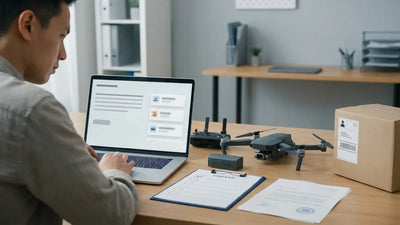
DJI Assistant 2 is a free desktop application available for Windows and macOS that communicates with your DJI aircraft, remote controller, or goggles via a USB cable. Think of it as the "service mode" for your drone — a direct line to the firmware layer that bypasses the consumer apps entirely.
Core Capabilities
- Firmware Updates & Downgrades: Flash the latest firmware or roll back to a previous version when a new release introduces bugs.
- Device Calibration: Perform IMU, compass, and gimbal calibrations with more precision than the mobile app allows.
- Parameter Adjustment: Access hidden or advanced settings such as battery voltage thresholds, motor idle speed, and flight envelope limits.
- Flight Log Export: Download encrypted flight logs directly from the aircraft for analysis in DJI FlightHub or third-party tools.
- Data Wipe & Reset: Perform a factory reset on your drone before sale or to resolve persistent software glitches.
- Simulation & SDK Access: Developers can use Assistant 2 in conjunction with DJI's SDK to test custom applications.
DJI Assistant 2 Variants
DJI maintains multiple versions of Assistant 2, each supporting different product lines. It is critical to download the correct variant:
| Version | Supported Products | Download Source |
|---|---|---|
| DJI Assistant 2 (Consumer) | Mavic series, Mini series, Air series, Avata, FPV | dji.com/downloads |
| DJI Assistant 2 (Enterprise) | Matrice series, Mavic 3 Enterprise, Dock | enterprise.dji.com |
| DJI Assistant 2 (Agriculture) | Agras T-series, Agras MG-series | ag.dji.com |
| DJI Assistant 2 (For Simulator) | DJI Flight Simulator integration | dji.com/downloads |
Always verify the exact model number on the DJI support page before downloading. Installing the wrong variant will result in your device not being detected. If you need help identifying the correct version, our team at Reboot Hub can assist remotely or in person at our Shenzhen, China service centre.
2. How Do You Download, Install, and Connect DJI Assistant 2?
System Requirements
- Windows: Windows 10 or later (64-bit), 4 GB RAM minimum, 500 MB free disk space.
- macOS: macOS 10.14 Mojave or later, Intel or Apple Silicon (Rosetta 2 supported).
- USB Cable: Use the original DJI USB-C cable or a high-quality data-capable USB-C cable. Many cheap cables are charge-only and will not establish a data connection.
Step-by-Step Installation
- Navigate to dji.com/downloads and select the correct Assistant 2 variant for your product.
- Download the installer for your operating system.
- Run the installer and follow the on-screen prompts. On macOS, you may need to grant permissions in System Preferences → Security & Privacy.
- Launch DJI Assistant 2. You will be greeted by a connection prompt.
- Power on your drone (remove propellers for safety) and connect it to your computer via USB-C.
- The software should detect your device within 5–10 seconds and display its model, serial number, and current firmware version on the home screen.
Troubleshooting Connection Issues
If your drone is not detected, try the following in order:
- Try a different USB cable. This is the number one cause of connection failures. Use the cable that came with the drone.
- Try a different USB port. Prefer a USB 3.0 port directly on the motherboard, not a front-panel or hub connection.
- Disable antivirus or firewall temporarily. Some security software blocks USB device enumeration.
- Reinstall drivers. On Windows, open Device Manager, locate any "Unknown Device" entries, right-click, and select "Update Driver."
- Restart both the drone and the computer. A full power cycle resolves most transient communication errors.
For persistent connection problems, consult our detailed troubleshooting resource: DJI Drone Common Problems & Fixes.
3. How Do You Update DJI Firmware Safely with Assistant 2?
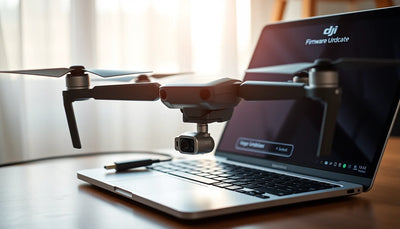
Firmware is the embedded software that controls every aspect of your drone's operation — from motor RPM and battery management to obstacle avoidance algorithms and camera image processing. Keeping firmware current is essential for stability, safety, and regulatory compliance. However, a failed firmware update can render a drone inoperable. DJI Assistant 2 provides the most reliable method for firmware management because it uses a direct USB connection rather than an over-the-air Wi-Fi link.
How to Update Firmware via DJI Assistant 2

- Connect your powered-on drone to your computer via USB and wait for DJI Assistant 2 to recognize it.
- Click on your device to enter the device dashboard.
- Navigate to the "Firmware Update" tab. Assistant 2 will check DJI's servers and display available firmware versions.
- Review the release notes carefully. Pay special attention to notes mentioning battery compatibility, regulatory changes, or known issues.
- Click "Update" next to the desired firmware version. Assistant 2 will download the firmware package and begin the flashing process.
- Do NOT disconnect the USB cable or power off the drone during the update. The progress bar may pause at certain percentages — this is normal. The entire process typically takes 10–30 minutes depending on file size and connection speed.
- Once complete, the drone will automatically reboot. Assistant 2 will confirm the update was successful and display the new firmware version.
- After any major firmware update, it is strongly recommended to recalibrate the IMU and compass before flying. This prevents erratic behaviour caused by mismatched sensor baselines.
How to Downgrade Firmware
DJI Assistant 2 allows firmware downgrades in most cases, which is invaluable when a new release introduces performance regressions. The process is nearly identical to updating:
- In the Firmware Update tab, look for an "Firmware History" or "Available Versions" dropdown.
- Select the previous firmware version you wish to restore.
- Click "Refresh" or "Downgrade."
- Wait for the process to complete. Note that DJI occasionally removes older versions from the server, so downgrading may not always be possible for very recent releases.
Pro Tips for Firmware Flashing
- Charge all batteries to at least 50% before starting an update. The firmware update will not initiate if battery levels are too low.
- Update each battery individually. Many DJI drones store per-battery firmware modules. After updating the aircraft, insert each battery and allow the drone to apply any battery-specific patches.
- Update the remote controller separately. Some firmware packages require the RC to be updated as well. Connect the RC to DJI Assistant 2 via its own USB port to check.
- Never interrupt a firmware update. A power loss during flashing can corrupt the flight controller's bootloader, requiring chip-level repair of the main board — typically $150–180 at Reboot Hub, compared to $280–380 at US/Western authorized service centres. If your drone becomes unresponsive after a failed update, contact our professional DJI repair service immediately.
4. How Do You Calibrate a DJI Gimbal and IMU Using Assistant 2?
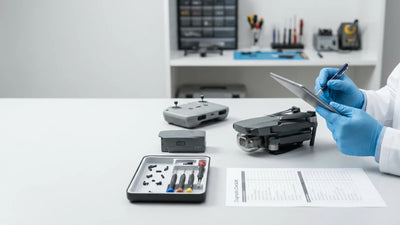
Calibration is the process of establishing baseline reference values for your drone's sensors. Over time, temperature changes, physical impacts, and firmware updates can cause sensor drift. DJI Assistant 2 provides the most thorough calibration procedures available outside of DJI's own factory settings.
Gimbal Calibration via DJI Assistant 2
A misaligned gimbal results in tilted horizons, shaky footage, and in extreme cases, gimbal motor overload errors. Here is how to perform a full gimbal calibration:
- Place the drone on a perfectly level, vibration-free surface. Use a spirit level if available. This is critical — calibrating on an uneven surface will embed the error into the system.
- Connect the drone to DJI Assistant 2 via USB.
- Navigate to the "Gimbal" or "Gimbal Auto Calibration" section.
- Click "Start Calibration." The gimbal will perform a series of automated movements — rotating through its full range of pitch, roll, and yaw. Do not touch the drone or the gimbal during this process.
- Upon completion, the software will report whether the calibration passed or failed. A failed calibration may indicate a physical defect such as a bent gimbal arm, damaged ribbon cable (repair cost: $50–80), or worn motor bearings — issues our technicians at Reboot Hub resolve daily.
Manual Gimbal Roll and Yaw Adjustment
If the automatic calibration passes but your horizon is still slightly tilted, you can make fine manual adjustments:
- In the Gimbal settings tab, locate the "Gimbal Roll" or "Fine-Tune" slider.
- Adjust the roll value in 0.1° increments until the preview image shows a perfectly level horizon.
- Save the setting and verify by hovering the drone in a wind-free environment and checking the live feed.
IMU Calibration
The Inertial Measurement Unit (IMU) combines a gyroscope and accelerometer to track the drone's orientation and movement. An uncalibrated IMU is one of the leading causes of flyaways and erratic hover behaviour.
- Place the drone on a level, stationary surface. Remove any nearby magnetic sources (speakers, metal objects, phones).
- In DJI Assistant 2, navigate to "IMU Calibration" or "Sensor Calibration."
- Follow the on-screen prompts. The drone will typically ask you to place it in multiple orientations (nose up, nose down, left side, right side, and flat) to calibrate all six axes.
- The process takes approximately 3–5 minutes. Do not move the drone until the software confirms calibration is complete.
Compass Calibration
While compass calibration can be performed via the mobile app, DJI Assistant 2 provides a more controlled environment. Navigate to the "Compass" section and follow the interactive guide. Always calibrate the compass in an open area free from metal structures, concrete with rebar, and electromagnetic interference.
5. What Advanced DJI Parameters Can You Adjust with Assistant 2?

This is where DJI Assistant 2 truly separates itself from the consumer apps. The "Tools" or "Advanced Settings" section exposes parameters that are otherwise invisible, giving experienced pilots and professionals fine-grained control over their aircraft.
Adjustable Parameters
| Parameter | Description | Typical Range |
|---|---|---|
| Maximum Altitude | Overrides the software altitude cap (subject to local regulations) | 30–1500 m |
| Maximum Distance | Sets the geofence radius from the home point | 20–15000 m |
| Descent Speed Limit | Maximum vertical descent rate in m/s | 1–6 m/s |
| Battery Low Voltage Warning | Threshold voltage for the low-battery warning prompt | 3.3–3.7 V per cell |
| Battery Critical Voltage | Threshold for forced auto-landing | 3.0–3.4 V per cell |
| Motor Idle Speed | RPM at which motors spin when armed but throttle is at zero | Model-specific |
| Gimbal Pitch Speed | How fast the gimbal tilts when you move the dial | 1–100% |
| Obstacle Avoidance Sensitivity | Reaction distance for APAS systems | Close / Normal / Far |
Important Warnings
Modifying advanced parameters can void your warranty, violate local aviation regulations, or create unsafe flight conditions. Before adjusting any setting:
- Document the original default value so you can restore it if needed.
- Never increase altitude or distance limits beyond what is legally permitted in your jurisdiction.
- Do not lower battery voltage thresholds below DJI's recommended minimums — doing so risks deep-discharging LiPo cells, which can cause permanent battery damage or thermal runaway.
- Test all parameter changes in a controlled environment with a spotter before relying on them in operational flights.
Resetting to Factory Defaults
If you have made changes that are causing problems, DJI Assistant 2 allows you to restore all parameters to factory defaults. Navigate to "Settings → Restore Factory Defaults" and confirm. This will not affect firmware versions but will reset all user-configurable parameters.
6. How Do You Export DJI Flight Logs and Perform a Factory Reset?
Flight logs are the black box recorder of your drone. They contain detailed telemetry including GPS coordinates, altitude, speed, battery voltage curves, motor temperatures, and error codes. DJI Assistant 2 provides the most direct method for extracting these logs.
Exporting Flight Logs
- Connect your drone to DJI Assistant 2.
- Navigate to the "Flight Data" or "Log Export" tab.
- Select the log files you wish to export. Logs are typically organized by date and flight session.
- Click "Export" and choose a destination folder on your computer.
- Logs are exported in DJI's proprietary .DAT format. To view them in a human-readable format, use tools like DJI Flight Log Viewer, DroneLogbook, or the free online parser at datfile.net.
When to Use Factory Reset
A factory reset via DJI Assistant 2 wipes all user data, settings, and cached files from the drone's internal storage. This is recommended in the following scenarios:
- Before selling or transferring your drone to a new owner.
- When experiencing persistent software bugs that survive firmware updates.
- After a hard crash that may have corrupted internal storage.
- When migrating from one DJI account to another.
To perform a factory reset: navigate to "Settings → Factory Reset", confirm your decision, and wait for the process to complete. The drone will reboot and appear as a brand-new device on the next connection.
Developer and SDK Access
For developers building custom applications or integrating DJI drones into enterprise workflows, DJI Assistant 2 works alongside the DJI Mobile SDK and Payload SDK. The software can enable ADB access on supported platforms and provide debug logs essential for application development. Refer to DJI's developer documentation for your specific platform for detailed setup instructions.
Frequently Asked Questions

Is DJI Assistant 2 free to download?
Yes. DJI Assistant 2 is completely free and can be downloaded from the official DJI website. Be cautious of third-party download sites that may bundle malware or offer outdated versions. Always download directly from dji.com/downloads.
Can I use DJI Assistant 2 on my phone or tablet?
No. DJI Assistant 2 is a desktop-only application available for Windows and macOS. Mobile firmware updates are handled through the DJI Fly, DJI GO 4, or DJI Pilot 2 apps, though these offer fewer options than Assistant 2.
Why does DJI Assistant 2 not detect my drone?
The most common causes are: using a charge-only USB cable instead of a data cable, an outdated version of Assistant 2 that does not support your specific drone model, or a faulty USB port. Try a different cable, a rear-panel USB port, and ensure you have downloaded the correct Assistant 2 variant for your product line.
Will using DJI Assistant 2 void my warranty?
Simply connecting to DJI Assistant 2 and performing standard firmware updates, calibrations, and log exports will not void your warranty. However, modifying advanced parameters such as motor limits or voltage thresholds may void coverage. Always check DJI's current warranty terms and document any changes you make.
How often should I recalibrate my IMU and gimbal?
DJI recommends calibrating the IMU and gimbal after every major firmware update, after any hard landing or crash, or whenever you notice performance irregularities such as tilted horizons, drifting in hover, or abnormal compass warnings. As a general maintenance practice, a calibration check every 50–100 flight hours is good professional discipline.
What does it cost to repair a drone bricked by a failed firmware update?
If a firmware update corrupts the flight controller bootloader, chip-level main board repair at Reboot Hub costs $150–180 with a 2–4 business day turnaround. US/Western authorized service centres typically charge $280–380 for equivalent main board work and may take 2–4 weeks. We surgically replace the individual failed chip rather than swapping the entire board — saving you money and preserving the rest of your hardware. For current pricing across all DJI models, see the Reboot Hub DJI Repair Cost Database 2026.
How long does a DJI Assistant 2 firmware update take?
A typical firmware update via USB takes 10–30 minutes, depending on the firmware package size and your USB connection speed. If the update stalls or fails partway through, do not disconnect — wait at least 30 minutes before attempting a restart. Should the drone become unresponsive, contact Reboot Hub's professional DJI repair service for a diagnostic assessment, which starts at no cost and is usually completed within 2–4 business days.
Reboot Hub · Support
Need Professional Help?
If your drone needs repair after troubleshooting, Reboot Hub offers certified chip-level repair in Shenzhen, China — genuine OEM parts, 90-day warranty.