Support & Learning / Module 7 branch
Pre-flight, Condition and Care
Before this lesson: DJI Drone Pre-Flight Checklist: Go/No-Go Checks
What you will understand
- Build a repeatable readiness and condition process.
- Separate observable evidence from assumptions before choosing an action.
- Continue through the main lesson path or enter a focused topic branch when needed.
Module 4 / Software and operator interface
DJI Fly is the operator interface for many current DJI consumer aircraft, but it is not one fixed screen shared by every model. The useful skill is learning how to confirm the exact aircraft, controller and app environment, understand what the interface is reporting, preserve warnings and make a deliberate go or no-go decision. This guide replaces a list of supposedly universal menus with a connected learning path that works for beginners while remaining precise enough for an experienced operator managing a real aircraft.
Quick answer
Confirm the exact system before changing a setting
Start with the exact aircraft, controller, mobile device where one is used, DJI account state and current supported DJI Fly installation. Read the aircraft-specific manual together with the live interface because availability varies by aircraft, controller, app version, flight mode and region. Record warnings and important settings before a change, keep legal airspace and DJI GEO questions separate from product setup, and complete the pre-flight gate before the aircraft is trusted for real work.
What should be visible before the customer acts?
What is DJI Fly responsible for?
DJI Fly brings together aircraft connection, camera view, status messages, safety configuration, flight data and media functions for supported DJI consumer products. It is the place where the operator sees the current state of the connected system, not a substitute for the aircraft manual or local rules. DJI's supported-product and device lists change over time, so the current DJI download page and exact-model support page are stronger evidence than an old screenshot or a copied compatibility table.
The interface varies by aircraft, controller, app version, flight mode and region. A Mini-series aircraft, an Air-series aircraft and a Mavic 3-series aircraft can expose different features even when they use the same app family. An integrated-screen controller also changes the device path compared with a controller that uses a phone. Treat the live supported interface as model-specific evidence and keep the exact aircraft manual beside this general lesson.
What should be confirmed before the first connection?
Identify the aircraft and controller precisely and confirm that they belong to a supported combination. If a phone is part of the system, use the current DJI compatibility information as the starting point and keep the operating system, available storage, cable condition and permissions visible. Download DJI software through the current official DJI route rather than a copied installation file. A pre-owned system also needs a clear ownership and account state; a successful cable connection does not prove that the unit is ready for transfer or use.
Power, propeller condition, battery seating, gimbal protection and the surrounding environment still matter before the app is opened. Keep the aircraft grounded with propellers clear while connection and setup are being reviewed. Record the aircraft, controller, batteries and supplied accessories as one system. This protects a beginner from mixing parts and gives a professional operator an asset baseline that can be compared after an update, repair or controller change.

How should connection, activation and ownership questions be separated?
A connection problem can come from the selected aircraft, controller pairing, cable or mobile-device path, application state, power state or compatibility. Change one supported variable at a time and record the result. Activation or sign-in is a different layer, and ownership or account binding is different again. Do not erase, reset or update the system merely because those terms appear together on a screen. Preserve the exact wording and follow the current supported route for the issue actually shown.
Sales version, DJI GEO information and local operating permission are also separate. DJI Fly may display airspace or account information, but an app state does not convert a product version and does not grant permission to fly. Reboot Hub treats represented version, supplied kit, account state and destination concerns as written evidence before a purchase or service decision, so the customer is not expected to discover a material limitation after commitment.
Which safety settings deserve a deliberate review?
Start with a confirmed Home Point and the current aircraft-specific return-to-home behavior. Review the return altitude against the real surroundings, the configured distance and height limits, control mode, obstacle-sensing state where the aircraft provides it, and the action expected after a command-link interruption. The safest value is not one universal number. Trees, buildings, terrain, local limits, mission geometry and the aircraft manual all change what an appropriate decision looks like.
Do not treat a remembered setting as proof that it is still active. Firmware, controller, account or configuration changes can alter what must be checked, and some functions depend on mode or environment. Before takeoff, read the status shown by the connected aircraft and investigate any warning rather than tapping through it. The dedicated pre-flight lesson turns those observations into a repeatable go or no-go gate.
How should camera, storage and transmission controls be handled?
Camera controls should begin with the required deliverable, not with every available menu item. Confirm the represented camera, storage destination, remaining capacity, file format, exposure approach, color setting and gimbal behavior needed for the job. Automatic and intelligent modes can be useful, but their availability and behavior are model-specific. Test a new mode in a low-risk legal environment before relying on it for an unrepeatable event or customer assignment.
Transmission information belongs to the command-link decision, not to a contest for maximum range. Monitor the current link indication and warnings, keep the aircraft within the operator's legal and practical control, and consider obstruction, interference and antenna orientation before guessing that a module has failed. A persistent or repeatable concern should move to the controller and signal-loss branches with the exact location, aircraft state and warning evidence preserved.

What evidence should be kept when DJI Fly shows a warning?
Capture the full wording, time, aircraft and controller state, battery used, location context and what happened immediately before the message. Keep screenshots without exposing private account information, and do not paraphrase a warning into a component diagnosis. The same visible symptom can have software, compatibility, environment, power or physical causes. Exact evidence lets DJI support or a qualified technician narrow the cause without pretending that a code alone proves a failed part.
Flight records and device logs can support a later investigation, but their availability and interpretation depend on the product and current software. Preserve the original record through supported methods before reinstalling, resetting or changing several variables. If the aircraft was involved in an impact, moisture event, uncontrolled landing or abnormal motor response, stop treating the concern as an app-only issue and move to a physical-condition and professional diagnostic decision.
What should happen after an app or firmware change?
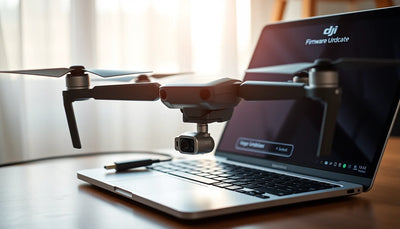
Reconnect the exact kit and compare the new state with the baseline. Confirm aircraft and controller recognition, warning state, battery prompts, camera feed, gimbal startup, sensor status, Home Point behavior and safety settings. An installation-complete screen is not a full acceptance test. Use the firmware lesson for the supported change path and the pre-flight lesson for a controlled return-to-service sequence.
If DJI Fly closes, disconnects or behaves abnormally, preserve the point of failure and check only the supported causes relevant to the exact device. Confirm current compatibility, storage, ordinary restart and network conditions where the process requires them. Avoid unknown installation packages, unsupported recovery tools and repeated resets that destroy useful evidence. Stop when the supported path repeats the failure or when the aircraft itself behaves abnormally.
How does Reboot Hub turn DJI Fly information into customer confidence?
Reboot Hub starts from the customer's real concern: whether the exact aircraft and controller are compatible, what the app reports, which settings affect the intended use, what remains unknown and what must be proven before commitment. We do not replace missing evidence with a universal menu, an invented error meaning or a claim that one successful connection makes the unit risk-free. Exact-unit photographs, supplied-item records and written terms keep the decision transparent.
Continue through Support & Learning for the main course, Drone Wiki for exact-model context, the controller lesson for the command link, the firmware lesson for software-state changes, the error reference for warning evidence and the pre-flight lesson for acceptance. The Reboot Hub Standard explains how we remove reasonable customer worries with evidence and clearly stated unknowns rather than asking the customer to trust an anonymous listing or a generic app screenshot.
Keep exploring
Further reading
From The Reboot Hub Chronicle







From Drone Guides