Support & Learning / Module 5 branch
Camera, Gimbal and Payload
Before this lesson: How Drone Cameras and Gimbals Work: Sensors and Payloads
What you will understand
- Understand imaging, stabilization and payload roles.
- Separate observable evidence from assumptions before choosing an action.
- Continue through the main lesson path or enter a focused topic branch when needed.
Module 5 / Camera, gimbal and payload
A useful DJI gimbal calibration guide must do more than repeat a menu path. It should help the owner decide whether the visible problem belongs to image capture, mechanical stabilization, aircraft attitude, an accessory, or physical condition. Reboot Hub approaches that decision from the customer's point of view: record the exact symptom, remove each reasonable uncertainty with evidence, and make the safe next step clear before the aircraft flies or paid work begins.
Quick answer
Calibrate only when the exact symptom and product guidance support it
If the camera horizon is visibly offset after startup or the current DJI app requests gimbal calibration, place the complete aircraft on a stable level surface, remove the transport guard and any unsupported obstruction, record the warning, and use the calibration function documented for the exact model and current app. Stop if movement is obstructed, abnormal, noisy, physically damaged, affected by moisture, or unchanged after the supported attempt. App completion is evidence of a completed routine, not proof that every mechanical, optical or aircraft-attitude fault has been repaired.
Which evidence determines the next action?
Do not let one vague word such as tilted, shaky or stuck choose the repair. Separate what is visible, what remains unknown and what the exact product guidance supports.
What parts create a stable DJI image?
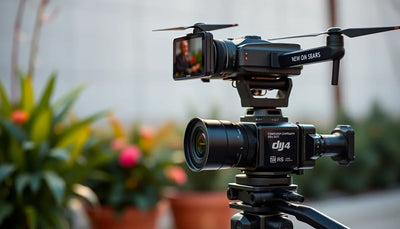
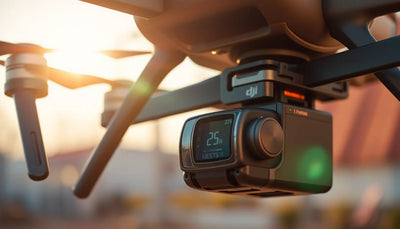
The imaging chain begins with the camera, image sensor, lens and exposure. The lens forms the scene on the sensor; focus, shutter, sensitivity, aperture where available, frame rate and filters influence what the recorded image looks like. A soft image, clipped highlight, flicker, focus error, dirty filter or storage-media problem can damage footage even when the three-axis gimbal is mechanically level. Those symptoms need camera evidence rather than an automatic assumption that stabilization has failed.
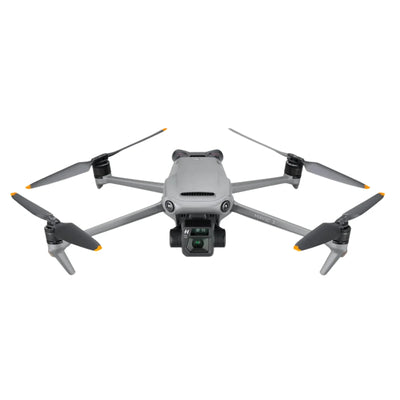
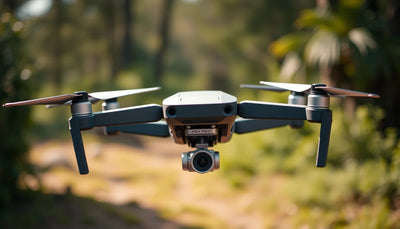
The three-axis gimbal controls camera orientation relative to the aircraft by coordinating tilt, roll and pan movement within the design of the exact platform. It works with aircraft attitude information, its own control electronics, motors, position feedback and the physical suspension around the camera. The payload is not merely the camera body: supported filters, lenses or enterprise payloads can change balance, clearance and configuration. Compatibility must therefore be checked against the exact model rather than inferred from appearance.

Which symptom belongs to the camera, gimbal or aircraft?
A horizon offset is a roll-alignment symptom: a stable horizontal reference appears tilted while the aircraft is stationary or in a controlled observation. Vibration or jello is different. It may track propulsion vibration, damaged propellers, airframe condition, wind, accessory fit or the gimbal's ability to isolate motion. A mechanical obstruction can instead produce restricted movement, overload behavior or abnormal sound. A frozen or missing camera view can involve image capture, connection, storage or software even when the gimbal still moves. One label should not be used to hide these different evidence paths.
Aircraft attitude adds another layer. If the aircraft's own attitude estimate is abnormal, a camera can appear to hold the wrong reference even when its mechanical range is unobstructed. Conversely, a visibly skewed camera after startup may be local to the gimbal. Record what the airframe reports, what the camera shows and what the physical assembly does. The purpose is not to guess a component; it is to decide which subsystem question deserves the next supported check.
What evidence should be captured before calibration?
Start with identity and context: exact aircraft model, controller, current app, firmware state shown by the supported interface, camera or payload fitted, filter or guard status, recent transport, impact, moisture or earlier service history. Preserve the exact warning wording instead of translating it into a guessed diagnosis. A short original recording of startup behavior and a still frame against a real horizontal reference create useful before-and-after evidence without inventing a numeric pass threshold.
Record whether the symptom is constant or intermittent, whether it appears in the live view and stored media, and whether it changes when the aircraft remains stationary. Keep the propellers still and the aircraft grounded during this evidence stage. If there is visible deformation, scraping, binding, debris, unusual sound, uncontrolled movement, heat, odor or moisture concern, stop. Calibration should not be used to force a damaged or obstructed mechanism through its travel.

What should be checked before a supported gimbal calibration?
Use a stable, level, non-moving surface with room for the camera assembly to move freely. Remove the transport guard and confirm that no supported accessory, loose item or debris contacts the gimbal. Check that the aircraft is physically complete and that the power state meets the current product guidance and app prompt. Do not introduce an arbitrary universal battery threshold, temperature rule or distance from nearby objects when the exact manual does not state it for the product in front of you.
Open only the current supported DJI app or controller interface for the exact product. DJI Fly, DJI GO 4 and compatible goggles can expose calibration in different locations, and older or enterprise products may not follow the same screen sequence. Read the current model support information before acting. If the option is absent, do not treat firmware change, hidden software or third-party tools as a shortcut. Confirm compatibility and use DJI or a qualified support route.
How should the DJI calibration routine be used?
For supported DJI Fly products, current DJI guidance places gimbal calibration in the camera-view system settings under Control. DJI GO 4 uses its gimbal settings area, while compatible goggles use their controls area. These are product-family directions, not a promise that every model, firmware release or controller presents identical wording. Follow the screen shown by the exact supported combination and keep the aircraft untouched while the routine moves through its own range.
Observe rather than assist the movement. Do not hold the camera level, push an axis, add weight, turn a motor by hand or repeat the routine until an abnormal mechanism appears to comply. Record whether the supported process completes and preserve any warning exactly. If it fails, stalls, repeats an abnormal sound or leaves the original symptom unchanged, stop and use the evidence to choose the narrower warning branch or professional diagnosis.

When should aircraft attitude or IMU evidence be considered?
The IMU helps the aircraft estimate motion and attitude; it is not the same component as the camera gimbal. DJI support guidance for a skewed gimbal may direct an owner to review IMU calibration as well as gimbal calibration, but that does not justify a universal rule that every tilted image requires both routines. First preserve the aircraft warning state and establish whether there is evidence of an aircraft-attitude issue.
Use the separate IMU lesson when the app requests that action or the exact product guidance supports it. Keep the aircraft stable and follow the supported sequence rather than improvising a calibration surface or moving the aircraft outside on-screen instructions. If the aircraft attitude remains questionable, the gimbal should not be used as a cosmetic correction for a wider flight-control concern. The two systems can interact while still requiring distinct evidence and stop conditions.
What does a completed calibration actually prove?
A completion message proves that the app routine reached its programmed end for that attempt. It does not prove the lens is clean, the sensor records correctly, the dampers are undamaged, the motors are healthy, the payload is compatible or the aircraft is suitable for every flight. Compare the same stationary horizon reference used before the routine, observe startup movement without touching the assembly and confirm that the original warning has not returned.
Then review the stored image and live view separately. Look for a stable horizon, normal response to supported camera control, absence of binding or abnormal sound, and no new warning. If a controlled powered check is appropriate, keep the aircraft grounded until the wider pre-flight gate is complete. Normal flight should begin only after the full aircraft, environment, controller, battery, propeller and current-rule checks support a go decision.

When is professional gimbal diagnosis the safer path?
Choose diagnosis when there is impact evidence, cracked or deformed structure, detached suspension, moisture concern, scraping, binding, abnormal sound, uncontrolled movement, repeated warning, intermittent camera connection, or a symptom that remains after the supported user-level check. Do not open the gimbal, route a replacement cable, clean internal contacts, alter firmware or replace a motor from a generic article. Exact-model construction, alignment and parts scope matter.
A useful repair intake ties the exact unit to the observed symptom, history, supplied accessories and media evidence. Diagnosis should separate confirmed findings from possible causes, define what can be tested safely, and produce a written scope before paid work. Reboot Hub's professional repair path explains approval, parts evidence, testing and repair-warranty boundaries without turning a generic online figure into a quote for the customer's aircraft.
How does Reboot Hub remove customer concerns around an imaging fault?
We begin from the customer's actual worry: whether the exact camera and gimbal can deliver usable footage, whether a warning points to a safe supported action, what condition or history remains unknown, and whether repair or replacement is the clearer path. We document the exact unit, the supplied items, the visible condition and the evidence available. We do not hide an unknown behind a polished label or promise that one calibration makes every aircraft ready.
The next action stays transparent. The Drone Wiki supplies exact-model context; the focused warning branch preserves narrower symptoms; the cameras and gimbals collection is considered only after compatibility and fault scope are clear; the professional repair route covers diagnosis and written approval; and The Reboot Hub Standard explains how evidence and written terms are handled. That path turns a support search into confidence without pushing the customer toward an unsupported procedure.
DJI gimbal calibration FAQ
Should every tilted DJI horizon be fixed with gimbal calibration?
No. Record the exact symptom first. Camera settings, aircraft attitude, physical condition and a true gimbal alignment issue require different evidence paths.
Can I use one menu path for every DJI drone?
No. DJI Fly, DJI GO 4, compatible goggles and enterprise interfaces differ. Confirm the exact model, controller and current supported interface.
Does a successful calibration prove the gimbal is healthy?
It proves the supported routine completed for that attempt. Separate visual acceptance, warning review and the wider aircraft pre-flight decision are still required.
Should I keep repeating calibration after an overload or stuck warning?
No. Remove an obvious external obstruction without forcing the mechanism, preserve the warning and stop for condition review or diagnosis if abnormal movement remains.
What should I send Reboot Hub for a gimbal diagnosis?
Send the exact model and unit identity available to you, the warning wording, startup behavior, before-and-after footage, impact or moisture history and the supplied configuration.
Keep exploring
Further reading
From The Reboot Hub Chronicle

From Drone Guides