Support & Learning / Module 7 branch
Pre-flight, Condition and Care
Before this lesson: DJI Drone Pre-Flight Checklist: Go/No-Go Checks
What you will understand
- Build a repeatable readiness and condition process.
- Separate observable evidence from assumptions before choosing an action.
- Continue through the main lesson path or enter a focused topic branch when needed.
Module 4 model branch / DJI Mavic 4 Pro
The Mavic 4 Pro update question is narrower than a generic firmware article: the customer needs the exact aircraft, controller, batteries and DJI Fly state to remain compatible after a real change. This guide removes invented version histories and generic error-code claims. It follows the currently supported DJI routes, records what the exact kit reports and defines a calm recovery boundary before a valuable aircraft is returned to flight or production work.
Quick answer
Let DJI Fly present the update, preserve the full kit state and verify before flight
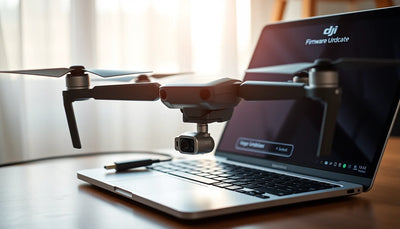
For Mavic 4 Pro, DJI states that DJI Fly presents a prompt when new firmware is available. Record the aircraft and controller versions, connected battery and accessories, current warning state and important settings; maintain the required internet and power; then follow the displayed sequence without interruption. DJI also lists Mavic 4 Pro for the Consumer Drones Series edition of DJI Assistant 2. Use that desktop route only as DJI currently supports it. Stop after repeated failure, an unrecognized device or abnormal post-update behavior.
What should be visible before the customer acts?
What is specific about Mavic 4 Pro firmware?
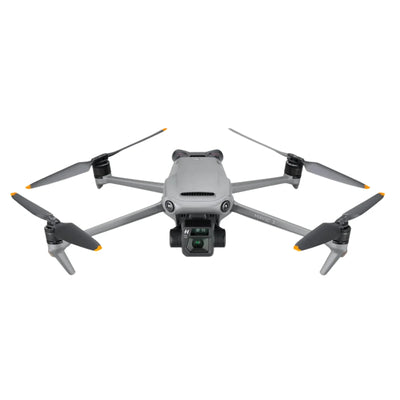
Mavic 4 Pro is a connected system rather than an aircraft body alone. The exact controller, DJI Fly environment, intelligent batteries, camera and gimbal system, sensing functions and supported accessories can all depend on a compatible software state. A useful model-specific guide therefore records the complete supplied kit and the versions the supported interface actually shows. It does not publish a made-up table of release numbers or borrow feature descriptions from another Mavic model.
Firmware is not a sales version, and it is not the same thing as DJI GEO. The represented market or sales-version context, account and activation state, DJI GEO information, and local airspace requirements must be verified separately. A supported update does not convert one sales version into another and does not provide permission to fly in restricted airspace. For every flight, the operator remains responsible for the applicable local rules and the current supported DJI configuration.
What should a Mavic 4 Pro owner preserve before updating?
Record the exact aircraft and controller, including the storage variant or supplied controller when that distinction matters to the kit. Save the aircraft, controller and battery information shown by DJI Fly, the app version, current warnings, important camera and flight settings, and any accessory connection. Photograph the physical arrangement and keep screenshots without exposing private account information. If the aircraft has impact, moisture, power or sensor concerns, document those before changing software so the sequence remains understandable.
Choose a maintenance window with time for verification, not the hour before a commercial shoot or travel departure. Confirm a stable internet path, the power level stated by current DJI guidance and a suitable environment where the equipment will not be moved or disconnected. Back up important media and document settings through supported methods. The purpose is not to predict that an update will fail; it is to ensure the customer can distinguish a software-state change from a pre-existing condition.

How should DJI Fly be used for the Mavic 4 Pro update?
DJI's current Mavic 4 Pro beginner guidance states that DJI Fly will present a prompt when firmware is available. Power and connect the represented aircraft and controller as directed, keep the controller or mobile environment connected to the internet and read the displayed change information. Follow the on-screen sequence rather than a fixed menu path copied from another app version. Do not close the task, disconnect a cable or power off a component while the supported process is running unless DJI's current instructions explicitly direct that action.
The system can restart during the update. Allow the normal sequence to finish and wait for DJI Fly to report its result. Reconnect the same kit and inspect the versions and prompts it now shows. If another intelligent battery or supported accessory produces a displayed update prompt, handle that component through the exact on-screen route. Do not claim that every battery or controller must follow a universal order when the current product interface is the more reliable source.
When is DJI Assistant 2 appropriate for Mavic 4 Pro?
DJI currently lists Mavic 4 Pro among the products supported by DJI Assistant 2 Consumer Drones Series. Download that edition from DJI's current support or download center, use a known-good data cable, power on the aircraft as instructed and let the application identify the connected product. Choose only firmware displayed by DJI for that device. The desktop route is useful when the supported app route is unavailable or has failed repeatedly, but it is not a license to load a local package from an unknown source.
If the computer does not recognize the aircraft, preserve the screen and check the supported causes before changing more variables. Confirm the cable, port, application edition, account sign-in and normal aircraft power state. Try the current official route with one controlled change at a time. If recognition or installation still fails, stop and contact DJI support or begin a qualified diagnostic intake. Do not turn a connection problem into a board-level diagnosis from an online article.
How should a failed Mavic 4 Pro update be triaged?
Capture the exact warning, displayed version, component being updated and the point of failure. DJI's general update guidance identifies conditions such as insufficient power, a product being powered off, a network interruption or the mobile device leaving the download process. Check only the factors relevant to the exact setup, restart through ordinary supported controls and retry the official route. If multiple app attempts fail and the aircraft remains normally recognized, the supported Assistant edition can be the alternate route.
Stop when failure repeats, the aircraft is not recognized, normal restart does not complete, or new abnormal camera, gimbal, sensor, power or link behavior appears. Do not assign an unsupported error-code meaning, repeatedly cycle power, open the aircraft or install an older package from a third party. Preserve the exact-unit evidence and recent history. A software failure can coexist with cable, power, storage or hardware issues, and only a proper support or diagnostic process can narrow that cause responsibly.

Should Mavic 4 Pro settings be reset or an older release installed?
Neither action should be automatic. If DJI presents an exact supported firmware choice for the connected Mavic 4 Pro, follow the displayed information and record the result. If DJI does not present that option, do not search for packages, hidden modes or third-party tools. An older release can be incompatible with another connected component or remove changes the current product requires. This guide intentionally provides no path for circumventing software, sales-version, account or airspace controls.
Resetting supported settings can remove configuration without resolving account binding, controller compatibility, physical damage or a region misunderstanding. Before any reset displayed by DJI, document the settings and understand what must be reconfigured. If a pre-owned unit has an ownership, version or supplied-kit concern, use the exact-model and buyer-evidence paths. Do not erase the state that would help the customer, DJI or Reboot Hub understand what happened.
What belongs in Mavic 4 Pro post-update acceptance?
Reconnect the exact controller, batteries and accessories used for the intended work. Confirm the versions shown by DJI Fly, controller link, warning state, battery prompts, camera feed, gimbal startup and sensing status. Review return-to-home behavior, control mode, safety settings, camera configuration and any production setting that may have changed. Record the new state and compare it with the baseline. A completion screen is one piece of evidence, not proof that every system and mission is approved.
Run the normal pre-flight gate and choose a low-risk legal environment for a controlled function check. Keep the first observation narrow, expand only when the system remains normal and stop on unexpected behavior. A production operator should keep the update and acceptance record with the asset and avoid assigning an unverified aircraft to an irreplaceable shot. The result applies to that exact kit and environment; it is not a blanket promise for every payload, site or future update.
How does Reboot Hub remove uncertainty around a Mavic 4 Pro update?
We work from the customer's actual concern: whether the represented Mavic 4 Pro kit is complete, what changed, which warnings are visible, what remains unknown and what must be proven before it returns to use. We do not fill missing evidence with an invented release history, guaranteed repair result or generic price. Exact-unit photographs, supplied-item records, supported version screens and written scope give both beginners and professional teams a transparent decision path.
Continue to the Mavic 4 Pro Wiki for exact-model context, the general firmware lesson for the wider method, DJI Assistant 2 for the desktop branch, the error reference for preserving warning evidence and the pre-flight lesson for acceptance. If supported checks stop short, Reboot Hub's professional repair route connects the evidence to diagnosis and written approval. The Reboot Hub Standard explains how known facts, reasonable concerns and unknowns are handled before service or purchase.
Keep exploring
Further reading
From The Reboot Hub Chronicle




From Drone Guides