How to Test Your DJI Drone After Repair: The Complete Verification Guide That Saves Your Next Flight
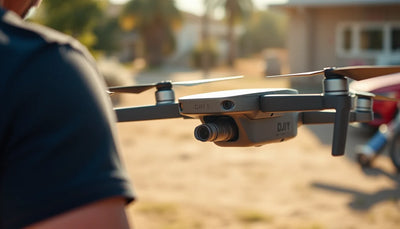
Getting your DJI drone back from a repair shop should feel exciting — but too many pilots unpack the box, charge the battery, and launch straight into a full-speed flight without running a single post-repair test. That is a recipe for a second crash, a lost aircraft, or a warranty dispute. Whether your drone was in for a gimbal replacement, a motor swap, or a full motherboard repair, the post-repair testing phase is arguably the most important thirty minutes you will ever spend with your aircraft. A methodical test protocol confirms that every subsystem works as intended, catches residual issues before they become catastrophic mid-air failures, and gives you documented peace of mind. At Reboot Hub, our technicians have diagnosed and repaired over 3,000 DJI drone units since 2022 in our Shenzhen, China facility, holding MOHRSS Level 3 Advanced Technician certification recognised by China's Ministry of Human Resources and Social Security — and this guide distils the exact verification process we use internally, adapted for pilots who want to perform their own quality assurance at home.
This article walks you through a complete post-repair test protocol: what to inspect before you even power on, how to run a controlled hover test, how to verify gimbal and camera performance, how to check every motor and propeller, how to stress-test signal range, and what final checks to tick off before you commit to a full mission flight. Follow every step in order, and you will know — with data, not guesswork — that your drone is truly airworthy.
1. What Should You Check Before Powering On a Repaired DJI Drone?
Before you even think about spinning up motors, a careful visual and mechanical inspection sets the foundation for everything that follows. Skipping this stage is like test-driving a car without checking the tyres — you might get lucky, or you might discover a problem at the worst possible moment.

1.1 Unboxing and Visual Inspection
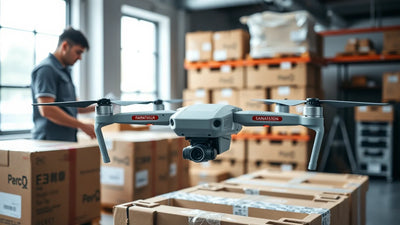
When you receive your repaired drone, start with a slow, methodical visual walkthrough. Hold the aircraft at eye level under good lighting and examine every surface, seam, and connector.
- Body integrity: Look for new scratches, dents, or hairline cracks on the shell — especially around the arms, landing gear, and battery compartment. Any cosmetic damage that was not present before the repair should be flagged immediately with the repair centre.
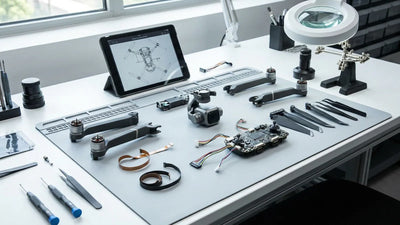
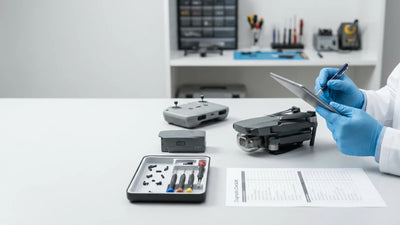
- Screw and fastener check: Verify that all screws are present and flush. Over-tightened screws crack plastic housings; under-tightened screws vibrate loose mid-flight. Use a small Phillips or Torx driver (depending on your DJI model) to gently confirm each fastener is snug.
- Arm and hinge alignment: Fold the arms in and out on foldable models (Mavic series, Air series, Mini series). Each arm should move smoothly with consistent resistance. Grinding, clicking, or asymmetrical folding indicates a misaligned hinge or incorrectly seated cable.
- Propeller condition: Even if the repair did not involve propellers, inspect each blade for nicks, warping, or stress marks. Replace any propeller that shows damage — they are inexpensive insurance against a vibration-induced crash.
- Ventilation openings: Ensure the cooling vents are free of debris, adhesive residue, or leftover repair materials. Blocked airflow leads to overheating during sustained flight.
1.2 Battery and Firmware Verification
A surprising number of post-repair issues trace back to batteries and firmware, not the repaired component itself.
- Battery health: Inspect the battery contacts for corrosion or scoring. Insert the battery and check that the latch clicks securely. Power on the drone and note the reported cell voltages in the DJI Fly or DJI GO 4 app — cells should be within 0.1 V of each other. Any significant imbalance warrants a full charge-discharge cycle before flying.
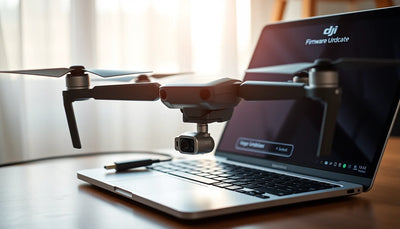
- Firmware status: Connect the drone to the DJI Fly app and check for firmware updates. A repair that involved replacing a core board may have reset the firmware to an older version. Always update firmware before flying — running mismatched firmware versions between the drone, battery, remote controller, and gimbal can cause erratic behaviour.
- IMU and compass calibration: After major repairs, the IMU (Inertial Measurement Unit) and compass may need recalibration. The app will usually prompt you if this is required, but you can also trigger recalibration manually through the settings menu. Perform this on a level, metal-free surface away from reinforced concrete and electronic interference.
- Sensor diagnostics: In the app, navigate to the sensor status page and confirm that all obstacle avoidance sensors (forward, backward, downward, lateral — depending on model) show a "normal" status with no errors or blind spots.
1.3 Setting Up a Safe Test Environment
Choose your test location carefully. You need enough space for unobstructed hovering and basic manoeuvres, but you also need a controlled environment where variables are minimised.
- An open, flat area at least 10 × 10 metres — a basketball court, empty car park, or quiet field works well.
- Wind speed below 10 km/h for the initial hover test. You want to isolate the drone's behaviour, not battle gusts.
- No large metal structures, power lines, or radio towers within 50 metres.
- A designated landing pad or clean surface to protect the gimbal from dust during the initial takeoff.
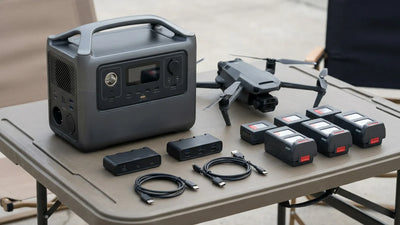
- At least two fully charged batteries — one for testing, one as backup.
2. How Do You Perform a Hover Test After DJI Drone Repair?
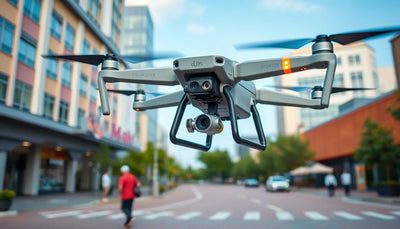
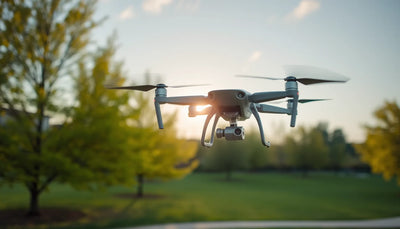
The hover test is the single most revealing check you can perform. A drone that hovers rock-steady at a fixed altitude with no pilot input is telling you that its flight controller, IMU, GPS module, motors, propellers, and ESCs (Electronic Speed Controllers) are all communicating correctly. A drone that drifts, oscillates, or tilts is telling you something is wrong — and you need to listen.

2.1 Step-by-Step Hover Test Procedure
- Power on the drone and remote controller. Wait for the home point to be recorded and the GPS signal to show at least 10 satellites (ideally 15+). The app should display "Ready to Fly (GPS)" — never attempt a hover test in ATTI mode after a repair.
- Launch to eye level. Gently take off and bring the drone to approximately 1.5 to 2 metres altitude — roughly eye height. This keeps it close enough to hear and see clearly, but high enough to clear ground-effect turbulence.
- Release all stick inputs. Centre both joysticks and let the drone hold its position autonomously. Resist the urge to correct — you are testing the system, not flying it manually.
-
Observe for 60 to 90 seconds. Watch for the following:
- Positional drift: The drone should hold within a roughly one-metre radius. Drifting consistently in one direction may indicate a compass calibration issue, an IMU offset, or — in rare cases — a motor with slightly different thrust output.
- Vertical oscillation: The drone should not "porpoise" up and down. Vertical hunting often points to a barometer issue or inconsistent motor response.
- Yaw drift: Stand in front of the drone and note its nose orientation. It should remain fixed. Slow, uncommanded yaw rotation typically indicates a compass or gyroscope problem.
- Unusual sounds: Listen for grinding, clicking, or high-pitched whining from any motor. Each motor should produce a smooth, consistent hum at roughly the same pitch. A motor that sounds different from the others may have a damaged bearing, a slightly bent shaft, or an incorrectly seated propeller.
- Test gentle inputs. After the static hover, make small, slow stick movements — forward, backward, left, right, and gentle yaw rotations. The drone should respond smoothly and return to stable hover when you release the sticks. Any jerky, overshooting, or sluggish response warrants further investigation.
- Landing and inspection. Land the drone and immediately feel each motor housing. They should all be roughly the same temperature. A significantly hotter motor may indicate excessive friction or an electrical issue. Also re-check propellers for any loosening during the test.
2.2 Interpreting Hover Test Results
| Observation | Likely Cause | Recommended Action |
|---|---|---|
| Consistent drift in one direction | Compass miscalibration or IMU offset | Recalibrate compass and IMU on a clean surface; retest |
| Vertical oscillation ("porpoising") | Barometer inconsistency or ESC issue | Recalibrate IMU; if persistent, contact repair centre |
| Slow yaw drift | Compass or gyroscope error | Compass recalibration; if unresolved, gyroscope may need re-initialisation by a technician |
| One motor sounds different | Bearing wear, bent shaft, or propeller imbalance | Swap propeller first; if sound persists, motor inspection required |
| Jerky or overshooting stick response | Firmware mismatch, stick calibration, or flight controller issue | Update firmware; recalibrate sticks in app; retest |
| Motor significantly hotter than others | Internal friction, winding damage, or ESC overdrive | Do not fly — return to repair centre for motor/ESC diagnosis |
For more detailed troubleshooting on hover instability, see our DJI drone troubleshooting guide. For pricing on common post-repair component replacements, visit the Reboot Hub DJI Repair Cost Database 2026.
3. How Do You Verify Gimbal and Camera Performance After Repair?
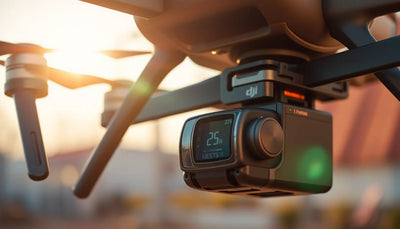
If your repair involved the gimbal assembly, camera module, ribbon cable, or any vibration-dampening component, this section is critical. Even if the repair was unrelated to the gimbal, always verify camera and stabilisation function — a crash hard enough to break a motor arm can also crack a gimbal arm or desynchronise the gimbal motor.

3.1 Gimbal Initialisation Check
With the drone powered on and the propellers removed (safety first for indoor gimbal checks), observe the gimbal start-up sequence through the app's camera view or by watching the physical gimbal:
- The gimbal should perform its initialisation dance — a brief sequence of movements through its full range of motion — without grinding, catching, or error messages.
- Check the app for any gimbal motor overload warnings or "gimbal stuck" alerts.
- The camera lens should point straight ahead and level with the horizon when the drone is on a flat surface.
3.2 Range of Motion and Stability Test
Using the controller or the app, manually move the gimbal through its full range of motion:
- Tilt (pitch): Move from straight ahead (0°) to directly below (-90°) and back up. The motion should be smooth and continuous with no jerking, hesitation, or audible clicking.
- Pan (yaw): On models with a pan axis (Mavic 3 series, Inspire series), rotate through the full range. Verify smooth movement with no binding.
- Roll stabilisation: While hovering, gently tilt the drone left and right. The gimbal should compensate and keep the image level. If the horizon tilts noticeably during banking, the roll axis may need calibration.
3.3 Image Quality Verification
Record a short 30-second video clip during the hover test and review it on a computer monitor — not just the phone screen. Look for:
- Jello effect (rolling shutter wobble): A rippling, wavy distortion in the footage that indicates vibration reaching the camera. This is usually caused by imbalanced propellers, a damaged vibration-dampening mount, or an improperly seated gimbal ribbon cable.
- Horizon tilt: A consistent off-level horizon in stabilised footage points to a gimbal calibration offset. Run the gimbal auto-calibration in the app (place drone on a perfectly level surface first).
- Focus and sharpness: Confirm the autofocus locks correctly and the image is sharp across the frame. A blurry corner may indicate a misaligned lens element from the repair.
- Colour and exposure anomalies: Unusual colour casts or exposure banding could indicate a damaged sensor or flex cable issue.
4. How Do You Diagnose Motor and Propeller Issues After DJI Repair?
Motors are the literal lift-generating heart of your drone. After any repair — especially one involving arm replacement, ESC board work, or motor swaps — a thorough motor check is non-negotiable.

4.1 Manual Motor Inspection
With the drone powered off and propellers removed, spin each motor by hand. Every motor should feel identical:
- Smooth rotation: No gritty, scratchy, or notchy feeling. Any roughness suggests a damaged bearing or debris inside the bell housing.
- Free spin duration: Give each motor bell a flick and count how long it spins. All four (or more, on hex/octocopters) should spin for roughly the same duration. A motor that stops much sooner has excessive friction.
- Axial play: Push and pull the motor shaft gently along its axis. There should be virtually no movement. A loose shaft indicates a worn bearing or improperly seated motor.
- Wobble test: Spin the motor and watch the bell from the side. It should rotate true with no visible wobble. A wobbling bell can cause vibration that degrades camera footage and accelerates bearing wear.
4.2 Propeller Installation and Balance Check
Propellers are precision-balanced rotating components. Even a 0.1-gram imbalance at 10,000+ RPM creates significant vibration.
- Install propellers according to the directional markings (CW and CCW). On DJI drones, each motor has a specific propeller — never mix them up.
- Ensure each propeller clicks or locks onto the motor hub fully. Partially seated propellers can detach in flight — this is one of the most dangerous failure modes.
- If you have a propeller balancer, check each blade. Even factory-new propellers can be slightly out of balance. After a crash or repair, this is especially worth verifying.
- After installing, gently press down on each propeller tip to confirm there is no play in the motor mount or propeller hub.
4.3 Motor Stress Test Under Load
During your hover test (Section 2), pay special attention to motor behaviour under load. After landing, check each motor:
- Temperature: Feel each motor housing. All should be warm to roughly the same degree. A significantly hotter motor is working harder than the others — possible causes include a damaged winding, a partially seized bearing, or an ESC delivering inconsistent current.
- Sound consistency: During hover, each motor should produce a similar tone. An outlier in pitch or volume warrants investigation.
- Vibration: Place your fingertips lightly on the drone body during hover (if safe to do so, or review onboard accelerometer data in the flight log). Excessive vibration localized to one arm points to that motor or propeller.
If you suspect a motor issue after your diagnostics, our guide to common DJI motor issues covers the most frequent failure modes and repair paths. Motor arm replacements at Reboot Hub typically run $60–80 for chip-level work — see the Reboot Hub DJI Repair Cost Database 2026 for the full price breakdown.
5. How Do You Test Signal Range and Connectivity After DJI Repair?
A drone with perfect motors and a flawless gimbal is still useless if it loses contact with the controller mid-flight. Signal-related repairs — antenna replacement, main board swaps, or remote controller repairs — demand a dedicated range and connectivity verification.
5.1 Controller–Drone Link Verification
Before flying, confirm the pairing between your remote controller and the drone:
- Binding status: The app should show a solid, stable connection with no "signal lost" flickers when the drone is within a few metres.
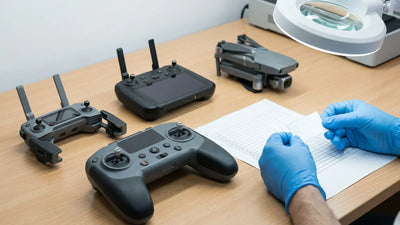
- Stick and button responsiveness: Move every stick through its full range and press every button (RTH, pause, custom buttons) to confirm all inputs register correctly in the app. After a controller repair, sticks can sometimes be miscalibrated — use the stick calibration function if any input feels off-centre or dead.
- Video feed quality: The live video feed from the camera should be clear, with no freezing, colour banding, or persistent artefacts when the drone is close.
5.2 Range Walk Test
After confirming the close-range link, perform a gradual range test:
- Take off and fly the drone to approximately 50 metres distance at a safe altitude (20–30 metres). Hold for 10 seconds and check signal bars and video feed quality.
- Continue to 100 metres, then 200 metres. At each point, note the signal strength indicator and any video feed degradation.
- If your environment permits and local regulations allow, push to 300–500 metres and observe. Most DJI drones using OcuSync or O3/O3+ should maintain a clean feed well beyond this range in open areas.
- Obstacle avoidance check: During this range test, fly the drone toward a safe, large object (a tree at a safe distance, a building wall) and confirm the obstacle avoidance sensors trigger warnings and/or automatic braking as expected. This is especially important after any sensor or motherboard repair.
5.3 Return-to-Home (RTH) Function Test
The RTH function is your last line of defence if signal is lost entirely. After a repair, always verify it:
- With the drone at 30–50 metres distance, press the RTH button on the controller. The drone should ascend to the preset RTH altitude (if it is below it), fly directly back to the recorded home point, and land within a one-metre radius.
- Cancel the RTH mid-way using the controller to confirm the override works correctly.
- Verify that the RTH altitude setting is appropriate for your environment — it must be higher than any obstacle between the drone and the home point.
For a deeper dive into DJI signal systems and how to maximise range safely, refer to our optimising DJI drone signal range article.
6. What Is the Final Pre-Flight Checklist After DJI Drone Repair?
You have completed the hover test, verified the gimbal, checked every motor, and confirmed signal integrity. Before you fly a full mission, run through this final checklist to make sure nothing was missed.
- Battery level: Both drone battery and remote controller battery above 80%.
- MicroSD card: Inserted, formatted, and with sufficient free space for your planned flight.
- Obstacle avoidance: Enabled (or disabled intentionally if your flight plan requires it, with full awareness of the risk).
- RTH altitude: Set appropriately for the environment.
- Max altitude and distance limits: Configured according to local regulations and your comfort level.
- Home point recorded: Confirm the green "H" appears on the map in the app.
- No-fly zone check: Verify you are not in a restricted airspace. DJI's GEO system will warn you, but always cross-reference with local aviation authority maps.
- Weather conditions: Wind speed, precipitation probability, and visibility all within safe limits for your drone model.
- Propeller tightness: One final check — give each propeller a gentle tug to confirm secure attachment.
- Firmware verification: All components (drone, battery, controller, goggles if applicable) on the same recommended firmware version.
Only after every item on this list is confirmed should you transition from test mode to full mission flight. The first real flight after a repair should still be conservative — stay within visual line of sight, avoid aggressive manoeuvres, and keep the drone relatively close for the first full battery cycle. Treat it as an extended shakedown cruise, not a cinema shoot or inspection mission.
FAQ
How long should I hover-test my DJI drone after repair?
Hover for a minimum of 60 to 90 seconds with zero stick input, then spend another 30 to 60 seconds making gentle directional inputs. This two-minute window is long enough to surface most mechanical, electronic, and sensor issues without draining a significant portion of your battery. If anything feels off, extend the test or land and investigate immediately.
Can I skip the hover test if the repair was just a shell or cosmetic fix?
We never recommend skipping the hover test, even for cosmetic repairs. Removing and reinstalling the shell involves disconnecting and reconnecting ribbon cables, antenna wires, and sensor connectors. A single misaligned cable can cause a flight controller or sensor malfunction that only reveals itself under power. The hover test takes two minutes — it is always worth doing.
What should I do if my drone drifts during the hover test?
First, recalibrate the compass and IMU on a clean, level, metal-free surface and retest. If drift persists after recalibration, the issue may be a hardware fault — a damaged compass module, a shifted IMU, or a motor thrust imbalance. In that case, do not attempt to fly the drone normally. Contact your repair centre with a description of the drift direction and conditions, or reach out to Reboot Hub's professional DJI repair service for a remote or in-lab diagnosis.
How do I know if a motor needs to be replaced after repair?
Warning signs include a gritty or rough feeling when you spin the motor by hand, noticeably higher temperature compared to other motors after hover, a distinctly different sound during operation, visible wobble in the motor bell, or axial play in the shaft. If any of these symptoms appear, the motor should be replaced before flying — a failing motor can seize mid-flight and cause an uncontrollable crash. Motor replacements at Reboot Hub typically cost $60–80 for chip-level work, completed in 2–4 business days.
Is it safe to fly a full mission on the first flight after repair?
We recommend treating the first full battery after repair as a conservative shakedown flight. Stay within visual line of sight, avoid extreme altitudes or distances, skip aggressive manoeuvres, and monitor the telemetry data closely throughout. If that battery cycle goes flawlessly — stable hover, clean gimbal output, consistent motor temperatures, strong signal at range — you can confidently return to normal operations on subsequent flights. If anything unusual occurs during the shakedown, land immediately and investigate before flying again.
How much does professional DJI drone repair cost at Reboot Hub?
At Reboot Hub, chip-level DJI drone repairs range from $50–80 for a ribbon cable replacement to $150–180 for main board chip-level work, with full gimbal module replacement at $200–280. This is significantly less than US or Western authorized service centres, where the same repairs typically cost two to three times more. Most repairs are completed in 2–4 business days. For the full component-by-component price breakdown, visit the Reboot Hub DJI Repair Cost Database 2026.
What warranty does Reboot Hub provide on DJI drone repairs?
Every repair at Reboot Hub comes with a 90-day warranty covering the repaired component and all related labour. If the same fault recurs within 90 days, we re-diagnose and repair at no additional cost. We use genuine OEM parts exclusively, which extends the functional lifespan of each repair well beyond the warranty period. To get started, request a quote through Reboot Hub's professional DJI repair service.
Reboot Hub · Support
Need Professional Help?
If your drone needs repair after troubleshooting, Reboot Hub offers certified chip-level repair in Shenzhen, China — genuine OEM parts, 90-day warranty.