DJI Geofencing & Fly Safe Unlock Guide: How to Get Legal Authorisation to Fly in Restricted Zones
If your DJI drone suddenly refuses to take off, displays a "GEO Zone" warning, or shows a red restricted area on your map, you have just encountered DJI's Geofencing system — known officially as the GEO (Geospatial Environment Online) system. While this safety feature prevents accidental flights into sensitive airspace, it can also block legitimate, fully legal operations if you don't know how to navigate the DJI geofencing unlock process. At Reboot Hub in Shenzhen, China, our MOHRSS Level 3 Advanced Technician-certified team has guided over 800 DJI drone operators through successful Fly Safe unlock authorisations since 2022, giving us deep first-hand expertise in every zone type and approval pathway covered below.
Whether you are a licensed commercial operator in Shenzhen needing to fly near a heliport, a surveyor mapping terrain adjacent to a no-fly zone, or a hobbyist visiting a new city, understanding how to request and manage DJI geofencing unlocks is essential. This guide walks you through every detail: from how the zone system is structured, to the exact steps for requesting an unlock, the differences between temporary and permanent authorisations, and which zones allow self-unlock without prior approval. Bookmark this page — you will want it handy the next time your drone hits a virtual wall.
What Is DJI Geofencing and Why Does It Exist?

DJI introduced its geofencing system in 2013 and has continually expanded it since. The system is a software-based safety layer embedded in every modern DJI aircraft and the DJI Fly / DJI GO 4 apps. It uses GPS coordinates and DJI's proprietary airspace database to create virtual boundaries around locations where drone flights could pose safety or security risks.

The primary purposes of DJI geofencing include:
- Preventing accidental flights near airports, military installations, and government buildings
- Reducing risk of mid-air collisions with manned aircraft in high-traffic airspace
- Complementing local regulations by adding a technological safety net on top of existing drone laws
- Building public trust in the drone industry through proactive safety measures
It is critical to understand that DJI geofencing is not a substitute for knowing local aviation law. The system is based on DJI's own database and may not perfectly mirror the official airspace restrictions published by the Civil Aviation Administration of China (CAAC) or equivalent authorities in other countries. Always verify your flight plan against official sources. For a refresher on China-specific rules, see our China drone registration and compliance guide.
What Are the Different DJI Geofencing Zone Categories?
DJI categorises restricted airspace into several distinct zone types, each with different levels of restriction and unlock requirements. Knowing which type you are dealing with determines the entire unlock workflow.

Restricted Zones (Red)
These are the most heavily controlled areas. Restricted Zones typically surround major international airports, military bases, and critical national infrastructure. In a Restricted Zone:
- The drone will not take off
- Flight is blocked by default with no in-app self-unlock option
- Unlocking requires manual authorisation from DJI, often with proof of regulatory permission
Height Zones (Grey)
Height Zones allow flight but impose a maximum altitude limit, usually 120 metres (400 feet) AGL. These zones are commonly found in the approach paths of smaller airports and heliports. In some Height Zones, you can self-unlock to raise the ceiling if you hold the appropriate clearance.
Enhanced Warning Zones (Orange)
These areas trigger a warning notification when you attempt to fly, but the flight is not blocked. You can proceed after acknowledging the warning. Enhanced Warning Zones cover areas like stadiums during events, certain government buildings, and locations with temporary flight restrictions.
Authorization Zones (Blue)
Authorization Zones require you to have a verified DJI account and to unlock the zone through the Fly Safe portal before taking off. This is where most operators will spend the most time navigating the unlock process. You need to provide your account credentials and, in many cases, proof of authorisation.
Warning Zones (Yellow)
Similar to Enhanced Warning Zones, Warning Zones display a notification but do not block flight. These are advisory areas where DJI recommends extra caution.
Class G Self-Unlock Zones (Green)
These are areas where DJI permits self-unlock with minimal friction. They are generally Class G airspace locations where no special authorisation is needed from aviation authorities, but DJI has flagged them for awareness.
| Zone Type | Colour | Flight Blocked? | Unlock Method | Typical Lead Time |
|---|---|---|---|---|
| Restricted | Red | Yes | Manual DJI approval + regulatory proof | 1–5 business days |
| Height Zone | Grey | Altitude-limited | Self-unlock or DJI approval | Instant – 3 days |
| Authorization | Blue | Yes (until unlocked) | Online unlock via DJI Fly Safe | Instant – 24 hrs |
| Enhanced Warning | Orange | No (warning only) | In-app acknowledgement | Instant |
| Warning | Yellow | No (warning only) | In-app acknowledgement | Instant |
| Self-Unlock | Green | No | Account verification | Instant |
How to Request a DJI Geofencing Unlock: Step-by-Step

The unlock process varies depending on zone type, but here is the general workflow that covers the vast majority of scenarios.
Prerequisites Before You Begin
- A verified DJI account — Register at flysafe.dji.com and complete phone or identity verification
- Your drone's serial number — Found on the aircraft body, the battery compartment, or in the app under "About"
- Regulatory documentation — If requesting a Restricted Zone unlock, you will need a copy of your flight authorisation from the relevant aviation authority (e.g., CAAC approval, local ATC clearance, or an operations permit)
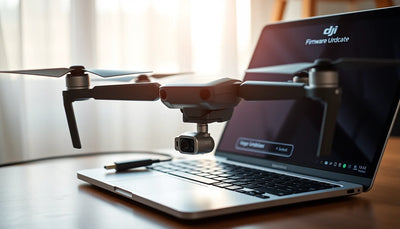
- Up-to-date firmware — Ensure both your aircraft and remote controller are running the latest firmware via DJI Assistant 2 or the DJI Fly app
- An active internet connection — The unlock is pushed to your device online, so plan ahead if you will be flying in a remote area
Method 1: Self-Unlock via the DJI Fly App
For Authorization Zones and Height Zones that support self-unlock:
- Open the DJI Fly app and connect to your drone
- On the map screen, you will see the geofenced area highlighted in the relevant colour
- Tap the zone warning banner that appears
- Select "Unlock" or "Apply for Unlock"
- Log in with your verified DJI account if prompted
- Agree to the responsibility disclaimer — by proceeding, you confirm you have the legal right to fly in that area
- The unlock token is downloaded to your drone. You should see the zone boundary change from red/blue to a cleared state on the map
- Take off and fly within the unlocked area and altitude limits
Important: Self-unlock tokens are device-specific and account-specific. They do not transfer between drones or between DJI accounts.
Method 2: Unlock via the DJI Fly Safe Website
For zones that require DJI manual review, or if you prefer a desktop workflow:
- Navigate to flysafe.dji.com
- Log in with your DJI account
- Click "Unlock Request" in the navigation menu
- Search for your flight location on the interactive map
- Click on the specific zone you need unlocked
- Select your drone model and serial number from the dropdown
- Choose the unlock type: Custom Unlock (specific area) or All Areas Unlock (for licensed operators)
- Upload any required documents — typically a government-issued pilot licence, CAAC drone operation permit, or ATC clearance letter
- Add a flight description explaining the purpose, date range, and operating hours
- Submit the request and wait for DJI's review team to process it
Once approved, you will receive a notification via email and in the app. The unlock must then be synced to your drone by connecting to the internet and refreshing the unlock status in the app.
Method 3: Direct Contact for Urgent or Complex Requests
If you have an urgent commercial operation or a complex multi-zone requirement, you can contact DJI's Fly Safe team directly:
- Email: flysafe@dji.com
- Hotline: +86 400 700 0303 (China)
- Include your account email, drone serial number, zone details, and attached regulatory documents
For operators who frequently need unlocks in the Shenzhen region and surrounding areas, our team at Reboot Hub's commercial drone services can assist with preparing documentation and expediting requests.
Temporary vs. Permanent Unlocks: What Is the Difference?
Understanding the duration and scope of your unlock is essential for operational planning.
Temporary Unlocks
Temporary unlocks are the most common type. Key characteristics include:
- Duration: Typically 1–72 hours, though some can last up to 30 days
- Scope: Specific to a defined geographic area and altitude ceiling
- Use case: One-off survey flights, event coverage, construction site inspection, or travel photography
- Renewal: You can re-apply once the unlock expires, but each renewal goes through the same approval process
- Device binding: The unlock is tied to one specific drone and one DJI account
Permanent (Long-Term) Unlocks
Permanent unlocks are reserved for professional operators with ongoing needs:
- Duration: Up to 1 year, subject to periodic re-verification
- Scope: Can cover broader geographic areas or multiple zones simultaneously
- Eligibility: Typically requires a valid commercial drone pilot licence, a CAAC-approved operations manual, and proof of recurring operational need
- All Areas Unlock: DJI offers an "All Areas Unlock" option for verified professional operators, which removes all geofencing restrictions on a given aircraft. This is the closest thing to a blanket unlock and is heavily vetted
Pro tip: Even with a permanent unlock, you are still legally obligated to comply with local airspace regulations. The DJI unlock only removes the software restriction — it does not grant legal flight permission. Always carry your authorisation documents when flying. For details on staying compliant, review our complete pre-flight checklist guide.
Which Unlock Type Should You Choose?

| Factor | Temporary Unlock | Permanent Unlock |
|---|---|---|
| Approval speed | Faster (often instant for self-unlock zones) | Slower (manual review, 1–5 days) |
| Documentation required | Basic account verification | Licence, operations manual, ATC clearance |
| Cost | Free | Free (but requires investment in licensing) |
| Best for | Hobbyists, one-time flights, travel | Commercial operators, surveyors, emergency services |
| Flexibility | Must re-apply each time | Covers ongoing operations for up to 1 year |
Self-Unlock Eligible Zones: Where Can You Unlock Instantly?
Not all zones require the lengthy approval process. DJI designates certain areas as self-unlock eligible, meaning you can remove the restriction in real time directly through the app.
Criteria for Self-Unlock Eligibility
A zone qualifies for self-unlock when:
- It is classified as an Authorization Zone or Height Zone (not a Restricted Zone)
- The airspace is Class G or equivalent uncontrolled airspace
- There is no active NOTAM (Notice to Airmen) or temporary flight restriction in effect
- DJI's risk assessment determines that the area does not require manual verification
How to Self-Unlock
- Open the DJI Fly app and connect to your powered-on drone
- Tap the geofence warning on the map
- Read and accept the safety disclaimer
- Verify that you are logged into a verified DJI account
- Tap "Confirm Unlock"
- The unlock token is applied immediately — the zone boundary will update on your map
- You can now take off and fly within the unlocked parameters
Common Self-Unlock Scenarios
- Near small regional airports: Many height zones around smaller airfields are self-unlock eligible, allowing you to fly at reduced altitudes without waiting for DJI approval
- Urban areas with authorization zones: Some city-centre zones allow self-unlock for sub-120m flights with a verified account
- Tourist destinations: Popular photography spots in scenic areas often fall into self-unlock categories
When Self-Unlock Fails
If the self-unlock option is greyed out or unavailable, the zone likely requires manual DJI approval. Common reasons include:
- The zone is a Restricted Zone (red) — these never allow self-unlock
- A NOTAM or TFR is active in the area
- Your DJI account is not fully verified
- Your drone firmware is outdated and doesn't have the latest geofence database
- You are outside the unlockable radius — some zones require you to be physically near the area to prevent remote exploitation
What Should You Do When DJI Geofencing Unlock Fails?
Even with the right preparation, you may encounter issues during the unlock process. Here are the most frequent problems and their solutions.
"Unlock Request Denied"
If DJI denies your request, the most common causes are:
- Insufficient documentation — Resubmit with a clearer copy of your regulatory approval
- Mismatched information — Ensure the name on your DJI account matches your licence
- Zone restriction level — Some zones near military installations are permanently locked and cannot be unlocked through standard channels. Contact DJI directly or your local aviation authority
Unlock Token Not Syncing to Drone

After approval, the token must be downloaded to your aircraft:
- Ensure your phone and drone are connected to the internet
- Open the DJI Fly app and go to "Safety" > "GEO Zone Unlocking"
- Tap "Refresh" or "Sync Unlock Data"
- If the issue persists, restart both the app and the drone, then try again
Geofence Map Outdated
DJI updates its geofencing database periodically. If you suspect the map data is stale:
- Update the DJI Fly app to the latest version from the App Store or Google Play
- Update your drone firmware via DJI Assistant 2 (desktop) or the app
- The geofence database updates are bundled with firmware updates — there is no separate download
Flying in a New Country
DJI's geofencing zones are region-specific. When travelling internationally:
- Your drone will automatically load the geofence database for your current GPS location
- You may need to re-verify your DJI account for the new region
- Some countries have stricter DJI geofence overlays than others
- Always research local drone regulations before your trip — the DJI system may not cover every local rule
Hardware note: If your drone consistently misidentifies its location or triggers false geofencing warnings in areas that should be clear, the root cause may be a faulty GPS module, IMU sensor, or compass rather than the geofencing database itself. Reboot Hub's chip-level technicians diagnose and repair these sensor issues — see the Reboot Hub DJI Repair Cost Database 2026 for transparent pricing on IMU, GPS, and ribbon cable replacements.
What Are the Best Practices for Managing DJI Geofencing?
To make your drone operations as smooth as possible, incorporate these habits into your workflow:
- Plan ahead: Check the DJI Fly Safe map at flysafe.dji.com before you leave for a flight location. Identify any zones that need unlocking and submit requests in advance
- Keep documents ready: Store digital copies of your pilot licence, drone registration, and any ATC clearances in a cloud folder so you can upload them quickly
- Verify your account early: Complete DJI account verification well before your first flight. A fully verified account unlocks more self-unlock zones and speeds up manual requests
- Update regularly: Firmware and app updates often include geofence database refreshes. Make updating part of your monthly maintenance routine
- Understand the limits: A DJI unlock is a software permission, not a legal one. You are still responsible for complying with all CAAC, FAA, or local aviation authority rules
- Carry proof in the field: When flying with an unlock, have your authorisation documents accessible on your phone or printed out. Law enforcement may ask to see them
For more tips on keeping your DJI equipment in top condition, including battery care and firmware management, check out our DJI drone maintenance guide.
Frequently Asked Questions
Can I fly my DJI drone without unlocking geofencing zones?
Only in areas that are not covered by any DJI geofencing zone — typically open rural areas away from airports and sensitive sites. In any zone that triggers a warning or restriction, you must either acknowledge the warning or complete the unlock process before takeoff.
Is DJI geofencing the same as official no-fly zones?
No. DJI geofencing is a proprietary, voluntary safety system maintained by DJI. Official no-fly zones and airspace restrictions are set by national aviation authorities like the CAAC. The two systems overlap significantly but are not identical. Always check official sources.
How long does it take to get a Restricted Zone unlock approved?
Restricted Zone unlocks typically take 1–5 business days, depending on the complexity of the request and the quality of your submitted documentation. Urgent requests with complete paperwork may be processed faster. Contact DJI directly for time-sensitive operations.
Does the unlock work on a different DJI drone or account?
No. Unlock tokens are device-specific and account-specific. If you switch drones or accounts, you must submit a new unlock request for each combination.
What happens if I try to bypass DJI geofencing?
Bypassing DJI geofencing — through modified firmware, third-party apps, or GPS spoofing — is illegal in most jurisdictions, including China under CAAC regulations. It voids your DJI warranty, may result in criminal penalties, and poses serious safety risks. Always use the official unlock process.
What should I do if my DJI drone's GPS is malfunctioning and triggering false geofencing warnings?
GPS or IMU sensor malfunctions can cause your drone to misidentify its position relative to geofencing zones, producing incorrect restrictions. Common hardware causes include a damaged GPS antenna ribbon cable ($50–80 at Reboot Hub) or a faulty IMU sensor ($50). Our chip-level technicians in Shenzhen, China diagnose and resolve sensor issues in 2–4 business days. If your drone consistently shows false zone warnings, request a hardware diagnostic before contacting DJI support.
How do I get professional help preparing DJI Fly Safe unlock documentation?
For assistance with DJI Fly Safe unlock documentation, account verification, or complex multi-zone requests, contact Reboot Hub's professional DJI repair and support team. We offer free initial consultations for commercial operators and can prepare regulatory documentation packages for Restricted Zone applications. Typical turnaround for documentation assistance is 1–2 business days. Our team in Shenzhen, China has guided over 800 operators through the unlock process since 2022.
Reboot Hub · Support
Need Professional Help?
If your drone needs repair after troubleshooting, Reboot Hub offers certified chip-level repair in Shenzhen, China — genuine OEM parts, 90-day warranty.